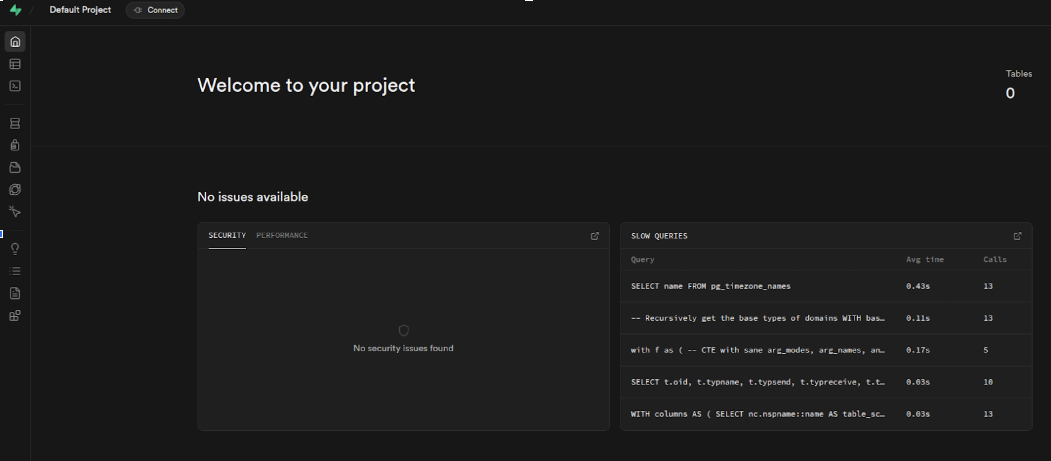
In this guide, we’ll explain how to install Supabase on a virtual server from Unihost. For this example, we used a VPS model from the UNH series.
The installation process is based on the official documentation: Self-Hosting with Docker.
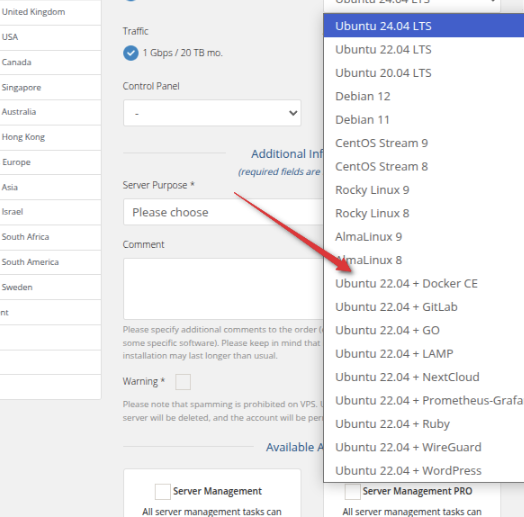
Docker was already pre-installed on our VPS, so the installation step is omitted in this guide. When placing your order, you can also choose an operating system image with Docker pre-installed — simply select the desired OS in the configurator.
Now let’s proceed with installing Supabase.
Once you have received the credentials to access your server, connect to it via SSH using the following command:
ssh root@SERVER_IP
After connecting to the VPS, make sure to update the system by running:
apt update && apt upgrade -y
Next, follow the steps from the official Docker-based installation guide:
Clone the Supabase repository:
git clone --depth 1 https://github.com/supabase/supabase
Create a directory for the project:
mkdir supabase-project
Resulting directory structure should look like this:
├── supabase

└── supabase-project
Copy the necessary Docker files:
cp -rf supabase/docker/* supabase-project
Copy the sample environment variables file:
cp supabase/docker/.env.example supabase-project/.env
Navigate to the project directory:
cd supabase-project
At this stage, you need to change the default Supabase password to your own. To do this, edit the .env file:
nano .env
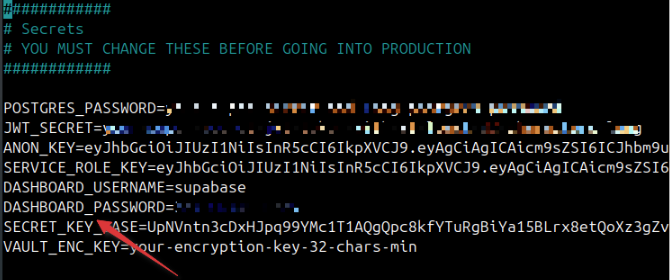
In the opened .env file, find the following line:
DASHBOARD_PASSWORD=...
Replace the default password with your own, save the changes, and close the editor.
After that, continue with the installation:
Pull the Docker images:
docker compose pull
Start Supabase in detached mode:
docker compose up -d
Wait until all Supabase services are fully up and running. Then, open your browser and go to:
http://SERVER_IP:8000
Enter the username and password you specified in .env — you will then be taken to the Supabase dashboard.