
The easiest and fastest way to install Gatus is to use the Portainer template prepared by our team. This approach minimizes manual configuration and allows you to deploy a stable, ready-to-use system in just a few minutes.
Requirements:
-
A VPS with Portainer installed using the Unihost script.
-
A deployed NPM (Nginx Proxy Manager).
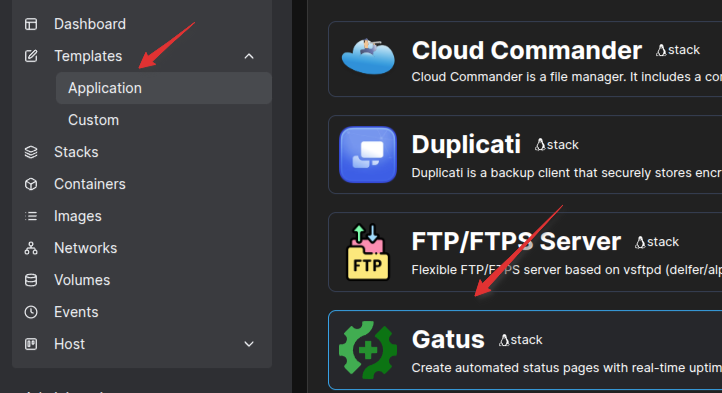
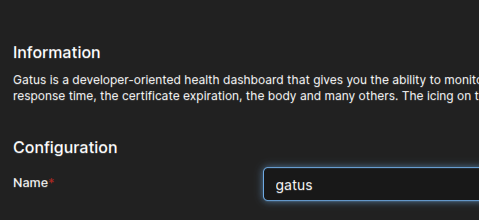
After connecting to Portainer, go to the Application section, select Gatus, and fill in the required information.
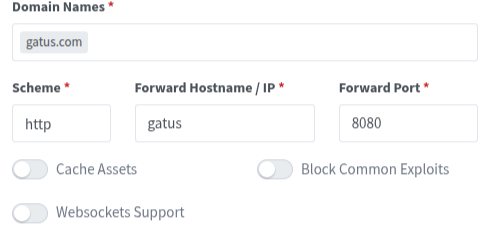
To access Gatus, you need to configure proxying through NPM.
Fill in the fields as shown in the screenshot.
-
If you have your own domain, add it to NPM and create an A record pointing to your server’s IP address.
-
If you don’t have a domain, use a test one: add it to the hosts file and also to NPM.

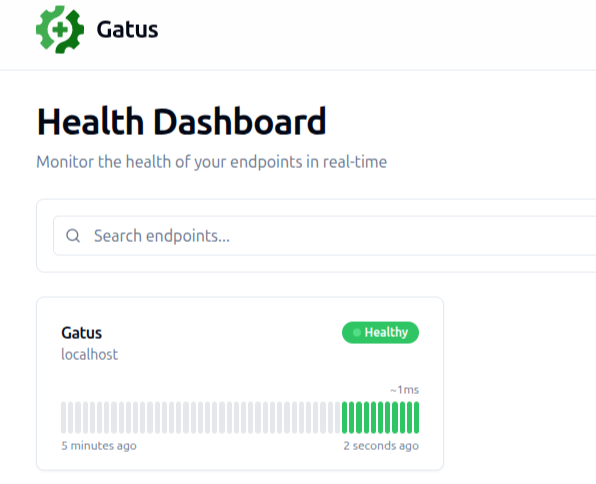
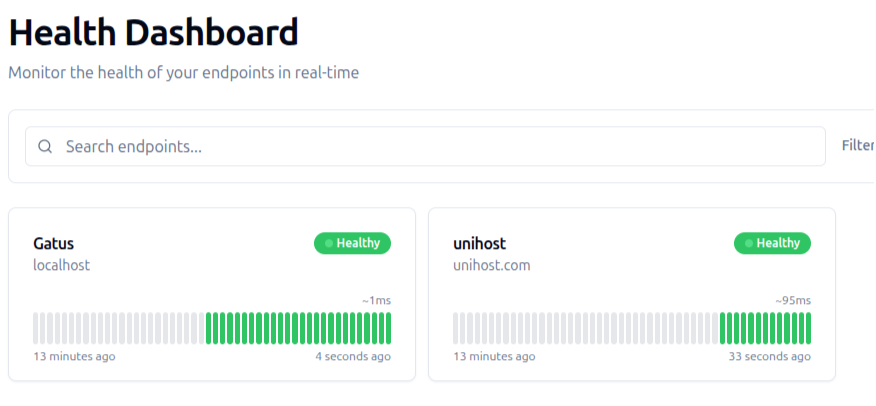
After that, the Gatus dashboard will open, where you can add containers and websites for monitoring.
To add a container or website to monitoring, specify it in the Gatus configuration file.
For containers inside Docker, it’s best to connect them to the same network as Gatus and access them by service name.
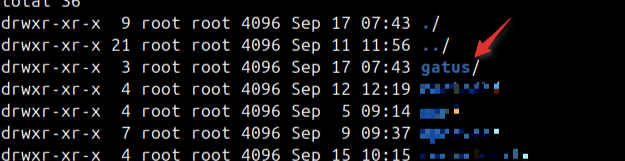
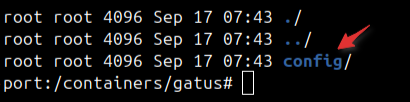
Go to the directory:
/containers/gatus/config
and open the config.yaml file for editing.
For convenient editing, you can use the Cloud Commander web interface (link to it), which allows you to work with files directly through your browser.
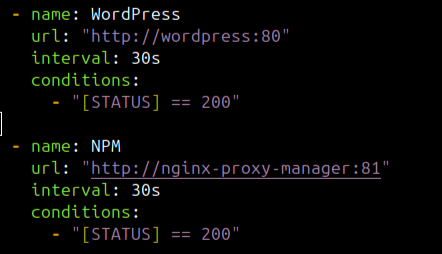
After that, you can use the following example to add a container to monitoring:
endpoints:
  - name: example.name
    url: "http://container-name:port"
    interval: 30s
    conditions:
      - "[STATUS] == 200"
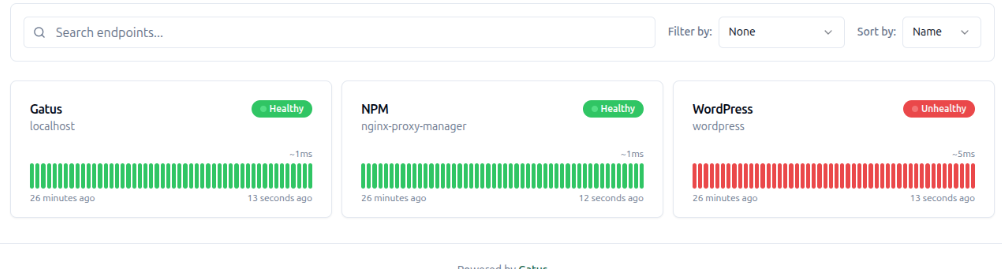
Save the file and restart Gatus. After the restart, your service will appear in the Gatus dashboard as shown in the screenshot.
If you want to add a separate website to monitoring, this is also done through the configuration file.
Example:
  - name: domain.name
    url: "https://domain.name"
    interval: 30s
    conditions:
      - "[STATUS] == 200"
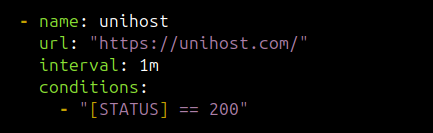
Note: the endpoints: key is specified only once at the beginning of the file. All websites and containers are added as a list within this section.
Conclusion
Using the ready-made Portainer template helps save time and reduce the risk of errors. As a result, you get a fully functional Gatus “out of the box” with minimal configuration effort.