
Traefik Reverse Proxy routes Docker containers by domain and can issue free HTTPS certificates with Let's Encrypt. Install it from the Unihost application template in Portainer, or deploy the Traefik v3 Compose stack below. Configure DNS and ports 80/443, enable the Docker provider, protect the dashboard with Basic Authentication, and add labels to publish your applications.
Compatibility: Linux with Docker Engine, Portainer, and Traefik v3. The screenshots show the Unihost template interface.
Requirements
- A VPS with Docker and Portainer installed, preferably using the Unihost template collection.
- A domain with A records pointing to the public server IP.
- Free inbound TCP ports 80 and 443, plus administrator access to the host.
- Console access in case firewall or networking changes interrupt SSH.
Before starting, verify that the DNS records resolve to the server and no other proxy uses the required ports:
dig +short traefik.example.com
sudo ss -tlnp | grep -E ":(80|443)\b"
Steps
Step 1. Install Traefik from the Portainer template
In Portainer, open Templates → Application → Traefik Reverse Proxy. Select the Unihost template, enter its required settings and a strong access password, then deploy it.
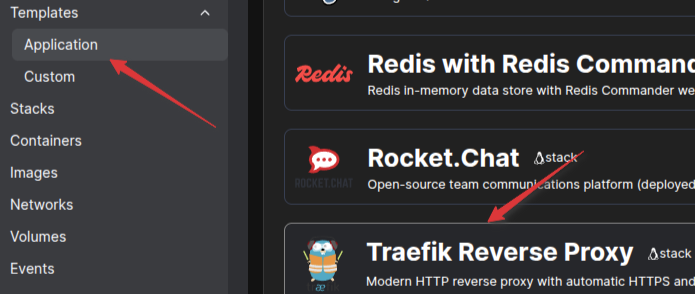
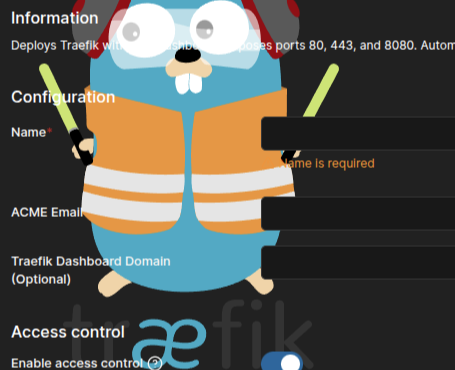
Open Stacks to confirm that the Traefik stack was created. The original template may expose the dashboard at http://SERVER_IP:8080. Do not leave an unprotected dashboard publicly accessible; the HTTPS configuration below uses a protected dashboard instead.

Step 2. Prepare DNS, the proxy network and dashboard credentials
Create A records for traefik.example.com and blog.example.com, both pointing to your server. On the Docker host, create a network and the certificate and authentication files:
docker network create traefik_proxy
sudo mkdir -p /opt/traefik/letsencrypt /opt/traefik/auth
sudo touch /opt/traefik/letsencrypt/acme.json
sudo chmod 600 /opt/traefik/letsencrypt/acme.json
# Ubuntu/Debian: sudo apt install -y apache2-utils
sudo htpasswd -cB /opt/traefik/auth/users admin
The htpasswd command prompts for a password. Port 80 must be reachable for the Let's Encrypt HTTP-01 challenge.
Step 3. Configure the Traefik v3 stack
Use Stacks → Add stack in Portainer and paste this Compose configuration. It is an alternative to the existing template stack, not a second Traefik instance on the same ports.
services:
  traefik:
    image: traefik:v3.7
    restart: unless-stopped
    command:
      - "--api.dashboard=true"
      - "--api.insecure=false"
      - "--providers.docker=true"
      - "--providers.docker.exposedbydefault=false"
      - "--providers.docker.network=traefik_proxy"
      - "--entrypoints.web.address=:80"
      - "--entrypoints.websecure.address=:443"
      - "--entrypoints.web.http.redirections.entrypoint.to=websecure"
      - "--entrypoints.web.http.redirections.entrypoint.scheme=https"
      - "--certificatesresolvers.le.acme.email=admin@example.com"
      - "--certificatesresolvers.le.acme.storage=/letsencrypt/acme.json"
      - "--certificatesresolvers.le.acme.httpchallenge=true"
      - "--certificatesresolvers.le.acme.httpchallenge.entrypoint=web"
    ports:
      - "80:80"
      - "443:443"
    volumes:
      - /var/run/docker.sock:/var/run/docker.sock:ro
      - /opt/traefik/letsencrypt:/letsencrypt
      - /opt/traefik/auth:/auth:ro
    networks:
      - traefik_proxy
    labels:
      - "traefik.enable=true"
      - "traefik.http.routers.dashboard.rule=Host(`traefik.example.com`)"
      - "traefik.http.routers.dashboard.entrypoints=websecure"
      - "traefik.http.routers.dashboard.tls=true"
      - "traefik.http.routers.dashboard.tls.certresolver=le"
      - "traefik.http.routers.dashboard.service=api@internal"
      - "traefik.http.routers.dashboard.middlewares=dashboard-auth"
      - "traefik.http.middlewares.dashboard-auth.basicauth.usersfile=/auth/users"
networks:
  traefik_proxy:
    external: true
Replace admin@example.com with your email and traefik.example.com with your dashboard domain. The external Docker network must already exist. This example is designed for Docker Engine in standalone mode and keeps certificates in a persistent directory.
Security: a read-only docker.sock mount still exposes sensitive Docker API information. For higher-security environments, use a restricted Docker Socket Proxy. Do not publish port 8080.
Step 4. Open the protected dashboard
Deploy the stack, then open https://traefik.example.com/dashboard/ and sign in using the credentials created with htpasswd. Check the HTTP routers and services.
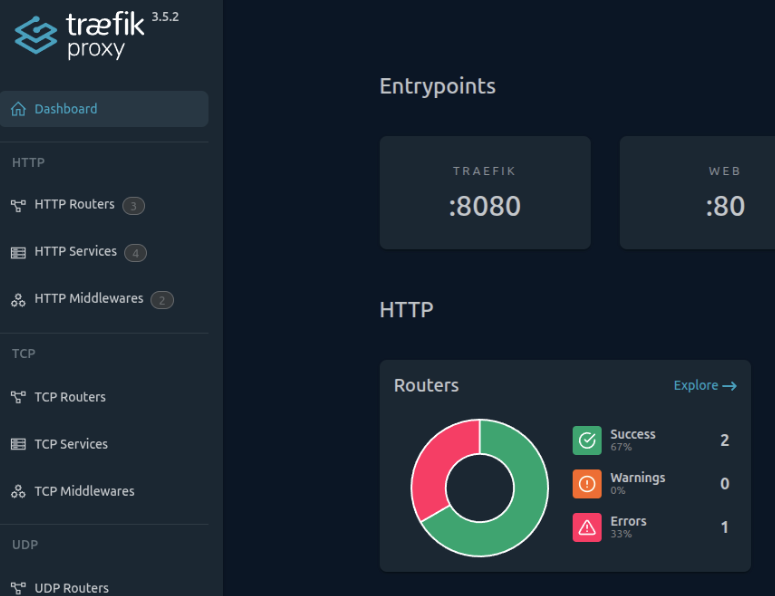
Step 5. Publish a Ghost container with Docker labels
Attach your application to the same traefik_proxy network and add labels. For Ghost, the internal HTTP port is 2368. The following fragment must be merged into the existing Ghost stack, keeping its image, database and persistent volumes:
services:
  ghost:
    # Keep the existing image, database and volume settings
    networks:
      - traefik_proxy
    labels:
      - "traefik.enable=true"
      - "traefik.docker.network=traefik_proxy"
      - "traefik.http.routers.ghost.rule=Host(`blog.example.com`)"
      - "traefik.http.routers.ghost.entrypoints=websecure"
      - "traefik.http.routers.ghost.tls=true"
      - "traefik.http.routers.ghost.tls.certresolver=le"
      - "traefik.http.services.ghost.loadbalancer.server.port=2368"
networks:
  traefik_proxy:
    external: true
For Odoo, use its application port (typically 8069) and the relevant Odoo proxy configuration. See the related Ghost and Odoo Portainer guides.
Verify
Check the container, dashboard, HTTP to HTTPS redirect and certificate:
docker ps
docker logs --tail 50 traefik
curl -I http://blog.example.com
curl -I https://blog.example.com
The HTTP request should redirect to HTTPS. The HTTPS request should succeed with a trusted certificate, and the router should appear in the dashboard.
Troubleshooting
Traefik returns 404
Check the Host() rule, traefik.enable label, selected entrypoint, target port and shared Docker network.
Let's Encrypt does not issue a certificate
Verify public DNS, inbound TCP 80/443, the ACME email, writable acme.json and Traefik logs. Wildcard certificates require DNS-01, not HTTP-01.
Port 80 or 443 is already in use
Check whether Nginx, Apache, Nginx Proxy Manager or another Traefik instance occupies the port. Only one process can bind the same host port.
Dashboard access fails
Verify the dashboard DNS, credentials file, HTTPS router and the /dashboard/ path. Keep api.insecure disabled.
FAQ
Traefik or Nginx Proxy Manager: which should I choose?
Traefik is convenient for Docker labels and automated routing; Nginx Proxy Manager offers a graphical interface for configuring proxy hosts.
How do I protect the Traefik dashboard?
Enable HTTPS and Basic Authentication, restrict access where possible and keep api.insecure=false.
Why is the Let's Encrypt certificate not issued?
Check DNS records, inbound port 80, ACME configuration and the Traefik logs.
Can I get a wildcard certificate?
Yes, but wildcard certificates require the DNS-01 challenge with a supported DNS provider.
Related Articles
Deploy Docker applications with Unihost
Use ready-made Portainer templates or choose a VPS for your Docker infrastructure.