
The simplest and fastest way to install Duplicati is to use the Portainer template prepared by our team. This method minimizes manual configuration and allows you to deploy a stable, ready-to-use setup in just a few minutes.
Requirements:
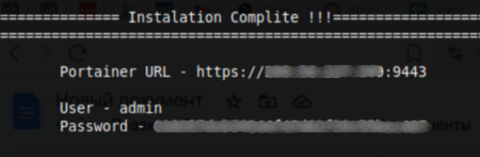
- A VPS with Portainer installed using the Unihost script;
- A deployed NPM (Nginx Proxy Manager).
After installing Portainer, log in using your credentials.
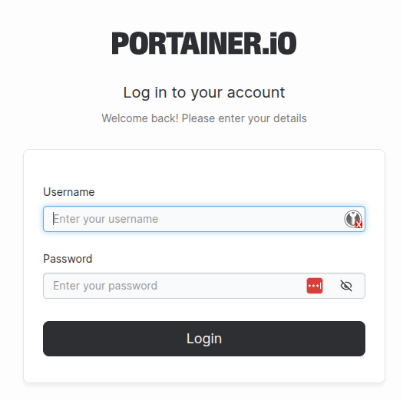
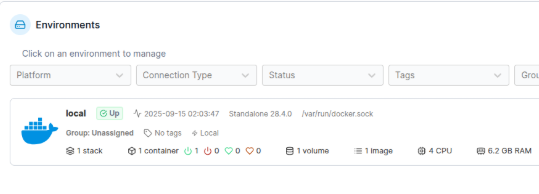
As soon as you log in to Portainer, go to the local section and select the Duplicati template.
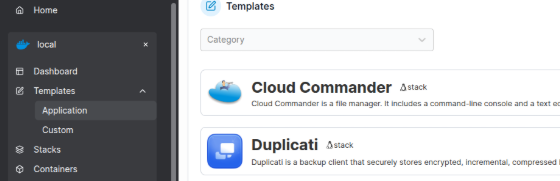
You need to fill in all the fields for Duplicati to work correctly.
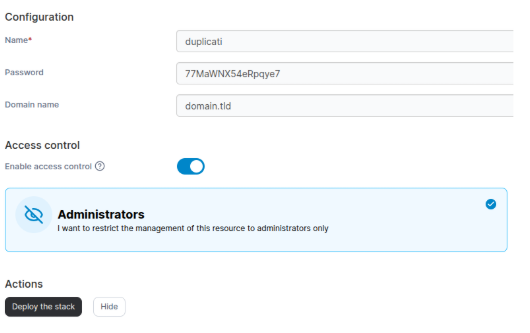
After that, you will see Duplicati in the Stacks section.
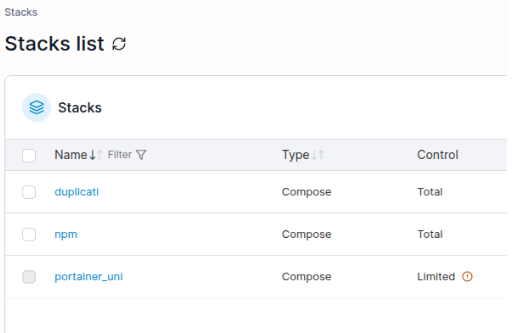
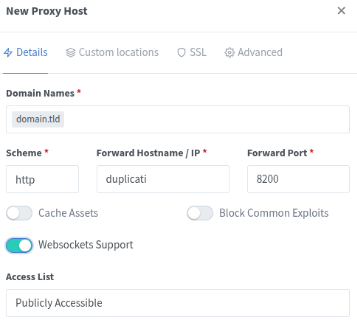
Now go to NPM to configure proxying.
In the Details section, fill in the fields as shown in the screenshot.
Mounting a Folder for Backups.
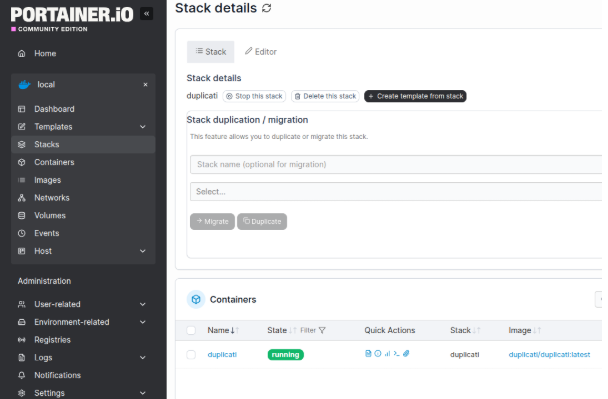
In Portainer, select Stacks and then the stacks name for Duplicati.
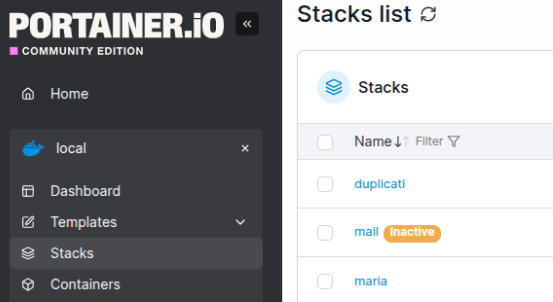
Next, in the Stack details menu, click on Editor.
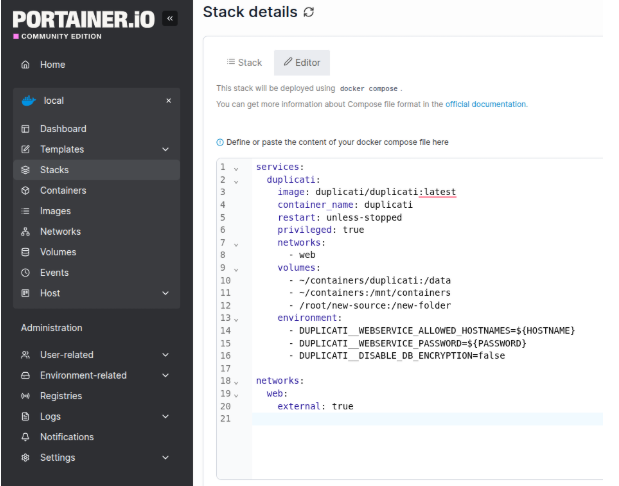
Then, in the volumes section, enter the data in the format:
/path-to-folder/on-host:/path-to-folder/in-container and click Update the stack.
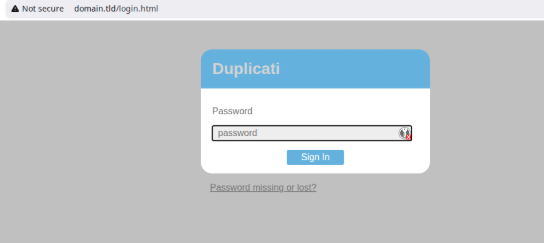
You can now use the specified domain, enter the administrator password, and access the Duplicati interface.
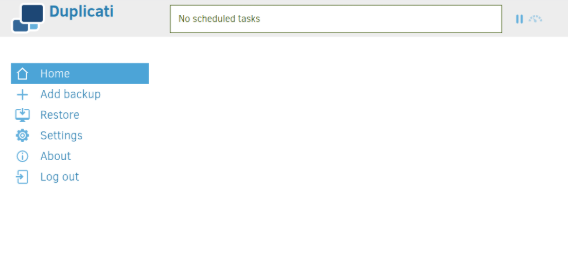
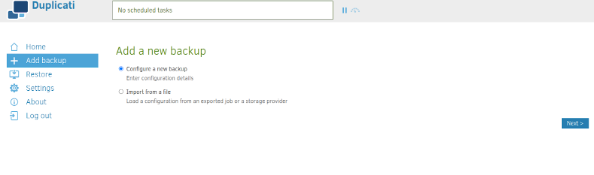
Let’s now review the process of creating backups:
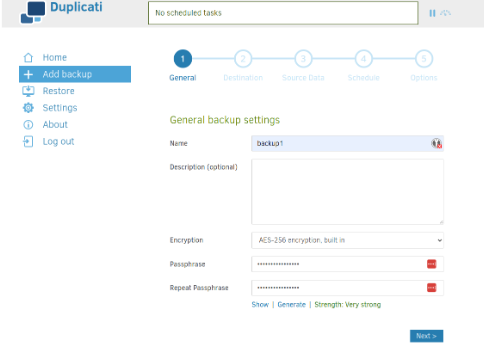
Step 1: Complete all required fields in the General backup settings section.
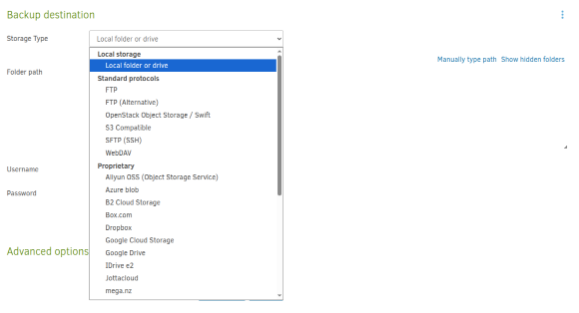
Step 2: Select the Backup destination.
You can select a Storage Type for storing backups. For example, let’s consider Local file or drive.
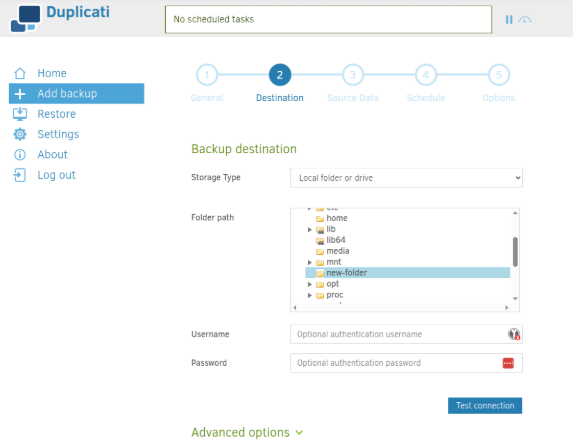
You can select any folder and, if desired, specify a username and password for protection.
Alternatively, you can specify the folder by selecting the Manually type path option.
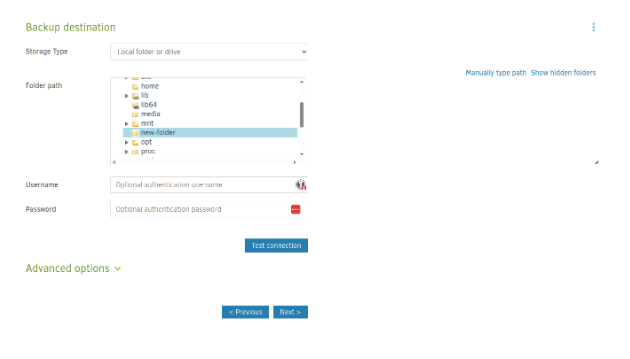
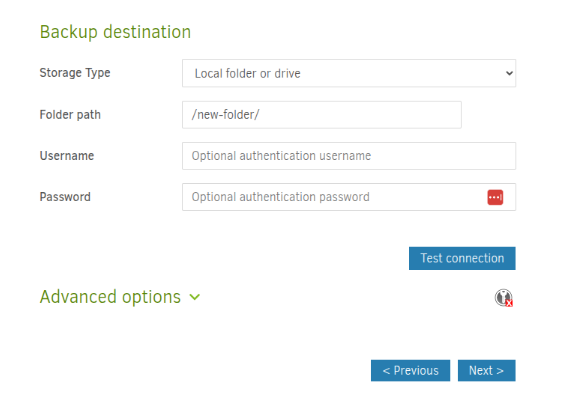
Once the folder is selected, please click Test Connection and Next.
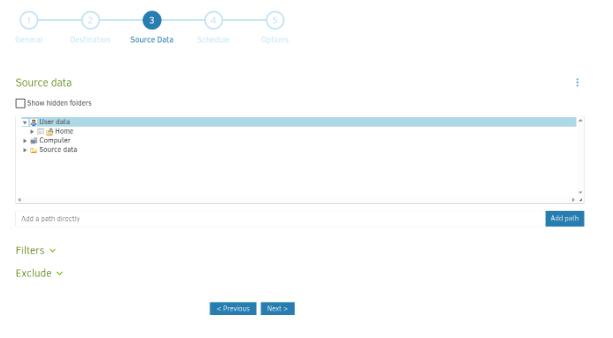
Step 3. Select Source data
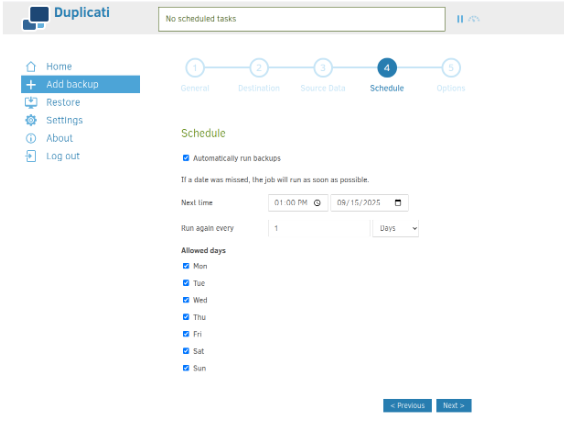
Step 4: Configure the backup Schedule.
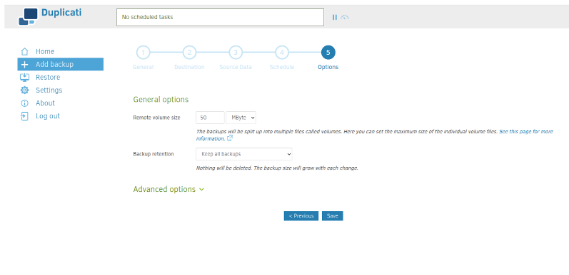
Step 5: Adjust the necessary General options
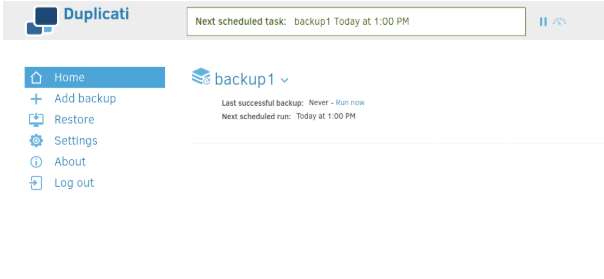
We can confirm that the backup task has been successfully created and is set to run on schedule.
Conclusion
Using the ready-made Portainer template significantly saves time and reduces the chance of errors. As a result, you get a fully functional Duplicati backup solution out of the box with minimal setup effort.