
In this article, we will walk through the process of installing a Hytale server on Unihost servers.
For stable Hytale server performance, high CPU clock speed is especially important, as the game relies heavily on single-core and high-frequency CPU performance. For this reason, we recommend servers with high per-core frequency rather than simply a large number of cores.
Recommended Servers
Recommended configuration for most Hytale servers
For the majority of Hytale game servers, the following configuration is a solid choice:
- AMD Ryzen 5 3600
- 6 cores / 3.6 GHz
- 64 GB DDR4
- 2 × 512 GB NVMe (configurable)
- 1 Gbps, unlimited traffic
Server link:
https://dashboard.unihost.com/cart.php?a=add&pid=974
Servers with DDoS protection
If DDoS protection is critical (for example, for a public server), we recommend considering a more powerful solution:
- AMD Ryzen 7 9800X3D
- 8 cores / 4.7 GHz
- 64 GB DDR5 ECC
- 2 × 960 GB NVMe
- 1 Gbps, unlimited traffic
Server link:
https://dashboard.unihost.com/cart.php?a=add&pid=998
VPS option for small groups
If you plan to play with a small group of players, a VPS can also be a suitable option.
Recommended VPS configuration:
- 6 vCPU (Intel)
- 12 GB RAM
- 100 GB NVMe
- 1 Gbps, unlimited traffic
VPS link:
https://dashboard.unihost.com/cart.php?a=add&pid=2124
Installing the Hytale Server on Windows Server 2022
We start by downloading the official Hytale server files.
Open the official Hytale Server documentation page:
https://support.hytale.com/en-us/articles/45326769420827-Hytale-Server-Manual
This page contains all the required tools to run a Hytale server.
Download the latest server files and prepare them for installation.
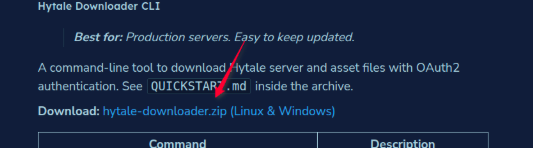
After downloading the hytale-downloader.zip archive, extract it to a convenient directory.
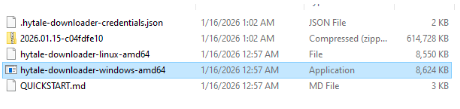
Inside the archive, you will find several files, including downloader versions for Windows and Linux.
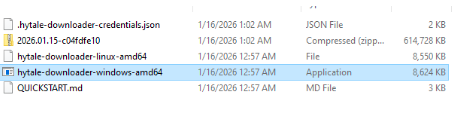
For Windows, use the following file:
Run it from the command prompt. The downloader will automatically fetch the latest Hytale server version and verify the integrity of the downloaded files.

After the download is complete, an archive containing the server files will appear in the directory (for example, 2026.01.15-c04fdfe10.zip).
Extract this archive into a separate directory — this will be the server’s working directory.
Installing Java 25
The Hytale server requires Java 25 (LTS) to run.
Visit the official Adoptium website:
https://adoptium.net/temurin/releases
Select JDK 25 (LTS) and download the Windows (x64) installer.
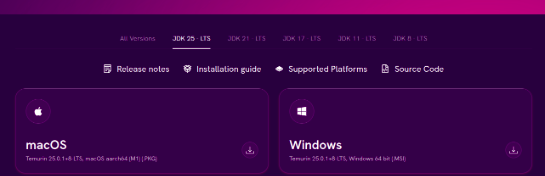
After the download is complete, run the installer and follow the standard installation steps.
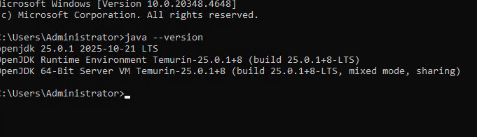
To verify that Java is installed correctly, open Command Prompt (CMD) and run:
If OpenJDK 25 is shown in the output, Java has been installed successfully and you can proceed with launching the server.
First Launch of the Hytale Server
For the next steps, we will use Command Prompt (CMD).
Navigate to the directory containing the Hytale server files. In our example, the server files are located in the Server directory.
To start the server, run the following command:
During the first launch, the server will begin initializing and loading all required components. You will see various log messages in the console — this is expected behavior.

Server Authentication (OAuth)
After the first launch, the server will require authentication and display a message indicating that login is required.
In the server console, run the following command:
The server will generate an authentication URL. Open this link in your browser, sign in to your Hytale account, and approve the access request.
Once authentication is completed successfully, the server will be properly linked to your Hytale account.

Persisting Authentication Data
To avoid re-authenticating the server after every restart, you need to persist the authentication credentials.
Run the following command in the server console:
This method stores authentication tokens in an encrypted format and is recommended for long-term server operation.
After this step, the server is ready for further configuration and for players to connect.

Opening Port 5520 (Windows Server)
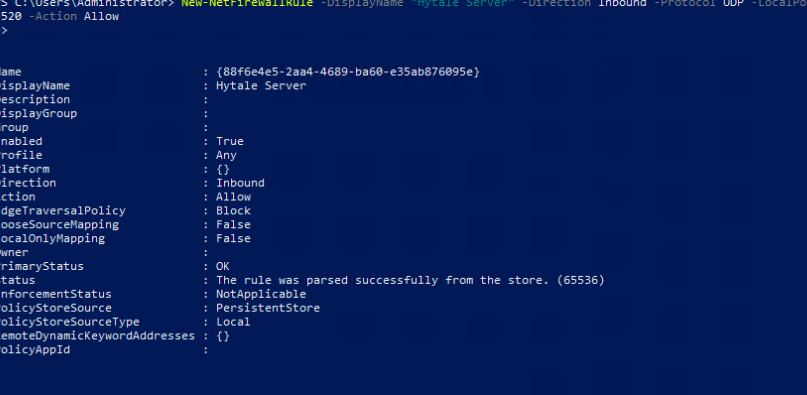
To allow players to connect, you need to open the server port 5520 (UDP).
Open PowerShell as an administrator and run the following command:
After executing this command, a new firewall rule will be added and the server will be accessible from external connections.
You can now connect to the server using Direct Connect, specifying your server’s IP address and port 5520.
Installing AdminUI
To simplify server management, you can install the AdminUI mod.
Download the mod from the following link:
https://www.curseforge.com/hytale/mods/adminui

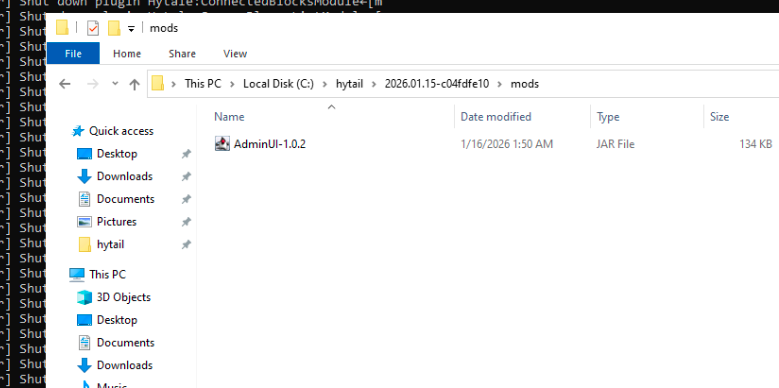
After downloading the mod, place the .jar file into the following directory:
mods
Next, start the server and assign yourself as an operator.
Connect to the server using the game launcher. Once connected, return to the server terminal and run the following command:
where <username> is your in-game account name.
After executing the command, you will receive an in-game notification confirming that operator privileges have been granted.
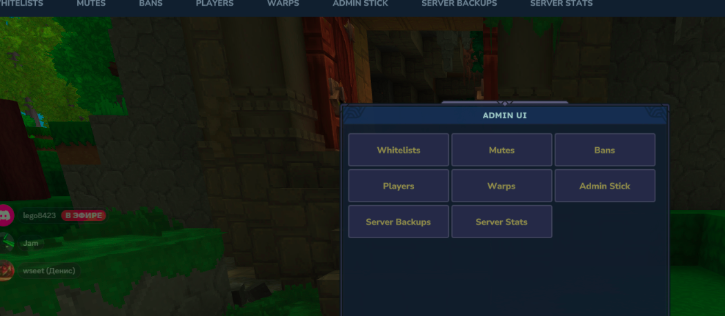
To access the administrator tools, enter the following command in the in-game chat:
The AdminUI panel will then open, giving you access to server administration features.
Installing the Hytale Server on Linux
Creating a Dedicated Server User (Recommended)
For security reasons, it is not recommended to run the Hytale server as the root user.
Best practice is to run the server under a dedicated system user.
Create a new user, for example hytale:
Add the user to the sudo group if required:
Switch to the newly created user:
All further server files and the Hytale server itself should be managed and launched under this user.
Installing Java 25 on Linux
The Hytale server on Linux requires Java 25 (Temurin).
Visit the Adoptium download page:
https://adoptium.net/temurin/releases
Select the following options:
- Operating System: Linux
- Version: JDK 25 (LTS)
- Package type: .tar.gz
Download the archive to continue with the installation.

After downloading the archive, you will have a file similar to:
OpenJDK25U-jdk_x64_linux_hotspot_25.0.1_8.tar.gz
Extract the archive using the following command:
By convention, Java is usually installed in /opt or /usr/lib/jvm.
In this example, we will use /opt:
sudo mkdir -p /opt/java
sudo mv jdk-25.0.1+8 /opt/java/
Configuring JAVA_HOME and PATH (User Level)
Open the user profile file:
nano ~/.profile
Add the following lines to the end of the file:
export JAVA_HOME=/opt/java/jdk-25.0.1+8
export PATH="$JAVA_HOME/bin:$PATH"
Apply the changes:
source ~/.profile
Verify the Java installation:
java -version
If the Java version is displayed correctly, the setup is complete.
Downloading the Hytale Server (Linux)
After installing Java, proceed to download the Hytale server files.
Download the server downloader archive from the official documentation page:
https://support.hytale.com/en-us/articles/45326769420827-Hytale-Server-Manual
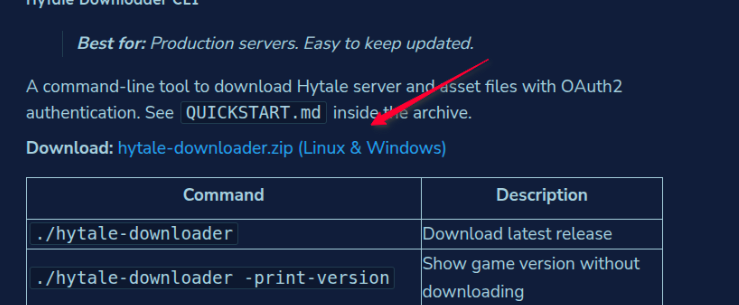
After the download is complete, you will have the following file:
hytale-downloader.zip
Extract the archive using the command:
unzip hytale-downloader.zip
Downloading the Server Files
Inside the extracted directory, you will find several files.
For Linux, use the following downloader:
hytale-downloader-linux-amd64
Run it with:
./hytale-downloader-linux-amd64
The downloader will automatically fetch the latest Hytale server version.

The downloader will automatically fetch the latest version of the Hytale server.
After the download is complete, an archive similar to the following will appear:
2026.01.15-c04fdfe10.zip
It is recommended to extract the server files into a separate directory:
mkdir /Hytale
mv 2026.01.15-c04fdfe10.zip /Hytale
cd /Hytale
unzip 2026.01.15-c04fdfe10.zip
Opening the Server Port (Ubuntu / Debian)
To allow players to connect, you must open port 5520 (UDP).
Run the following commands:
sudo ufw allow 5520/udp
sudo ufw reload
First Server Launch
Navigate to the server directory and start the server using the following commands:
cd Server
java -jar HytaleServer.jar --assets ../Assets.zip
During the first launch, the server will request authentication — this is expected behavior.
Server Authentication
In the server console, run:
/auth login device
Open the URL displayed in the console, sign in to your Hytale account, and approve the access request.

Persisting Authentication
After successful authentication, it is recommended to persist the credentials so you don’t have to log in again after every server restart.
Use the encrypted credential store:
/auth persistence Encrypted
If needed, you can choose a different persistence method.
Connecting to the Server
Once the setup is complete, the server is ready to use.
To connect, use Direct Connect in the Hytale client and enter your server’s IP address.
Installing Mods (Optional)
If you want to install mods:
- Download the desired mod (for example, AdminUI) from CurseForge
- Navigate to the Server directory of your Hytale server
- Place the mod .jar file into the mods directory
- Restart the server
After the restart, the mod will be loaded automatically.