
1. What is FASTPANEL
FASTPANEL is a modern, fast, and intuitive control panel for managing servers (VPS/VDS or dedicated servers). It allows you to easily manage websites, databases, email, SSL certificates, and backups through a user-friendly graphical web interface, eliminating the need to perform most tasks in the Linux console.
2. FASTPANEL Components
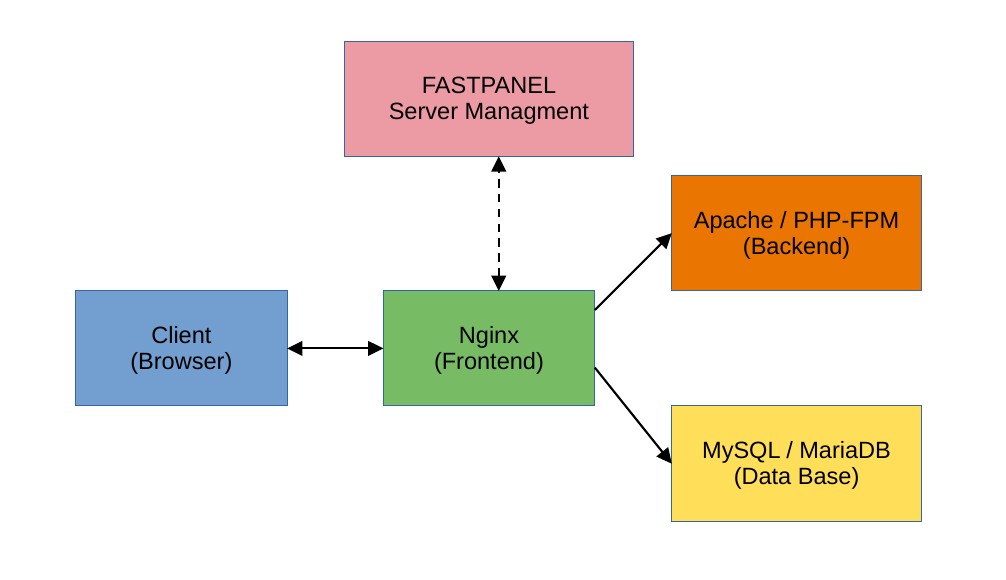 The main components the control panel works with:
– Nginx: Acts as the front end. It receives user requests, serves static content, and proxies dynamic content.
– Apache / PHP-FPM: The back end that processes websites’ PHP scripts (e.g., CMS code).
– MySQL / MariaDB: A database management system (DBMS).
– ProFTPd / Dovecot / Exim: Responsible for file transfers and corporate email operations.
The panel itself is isolated and runs via its own built-in web server on port 8888.
3. How to Install the Control Panel (Step-by-Step Guide)
IMPORTANT RULE: The control panel must be installed STRICTLY on a clean operating system. The server must not have any pre-installed web software (Apache, Nginx, MySQL, or third-party control panels).
The installation process is automated as much as possible.
1. Connecting to the Server
Open a terminal (on Linux/macOS) or the PuTTY/MobaXterm program (on Windows) and connect to your clean server via SSH as the root user:
ssh root@your_server_ip
2. Run the installation script
To start the installation, copy and paste the following command into the terminal:
wget http://repo.fastpanel.direct/install_fastpanel.sh -O - | bash -
3. Waiting and Obtaining Access
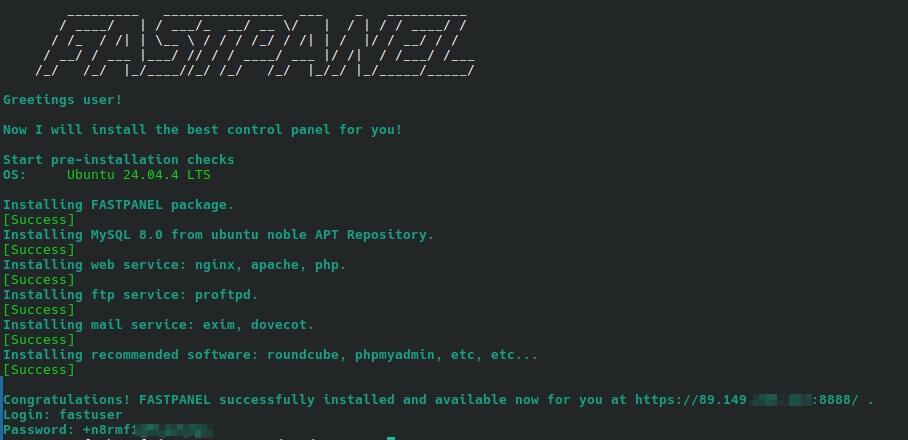
The script will automatically download and configure all the necessary packages. Installation takes 3 to 10 minutes. Once installation is complete, a message will appear in the terminal with your login credentials:
4. Getting Started and Using the Panel
When you log in for the first time, you’ll need to complete a few basic steps:
1. Obtaining a license: When you open the dashboard for the first time, your browser may display a warning about a self-signed certificate (this is normal; click “Continue”). The dashboard will then ask you to enter your email address to obtain a free license. This takes just one click.
2. Creating Your First Website: On the home page, click the “Create Website” button. You can choose to automatically install WordPress or create a blank project.
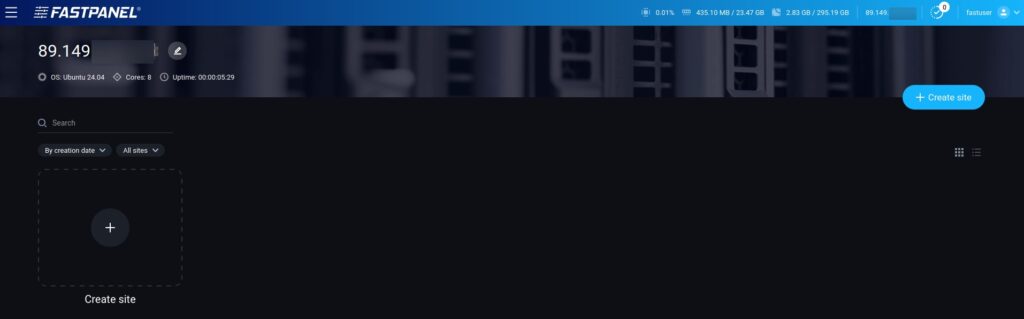
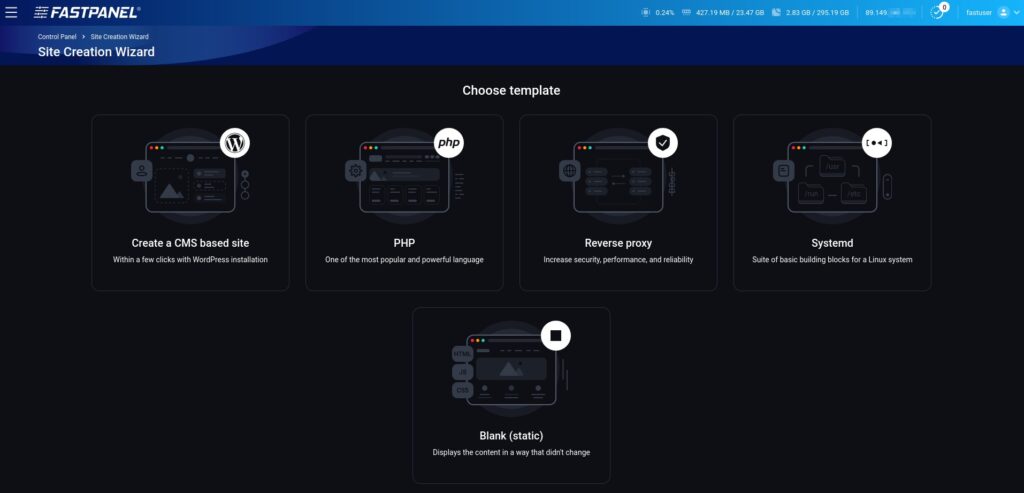
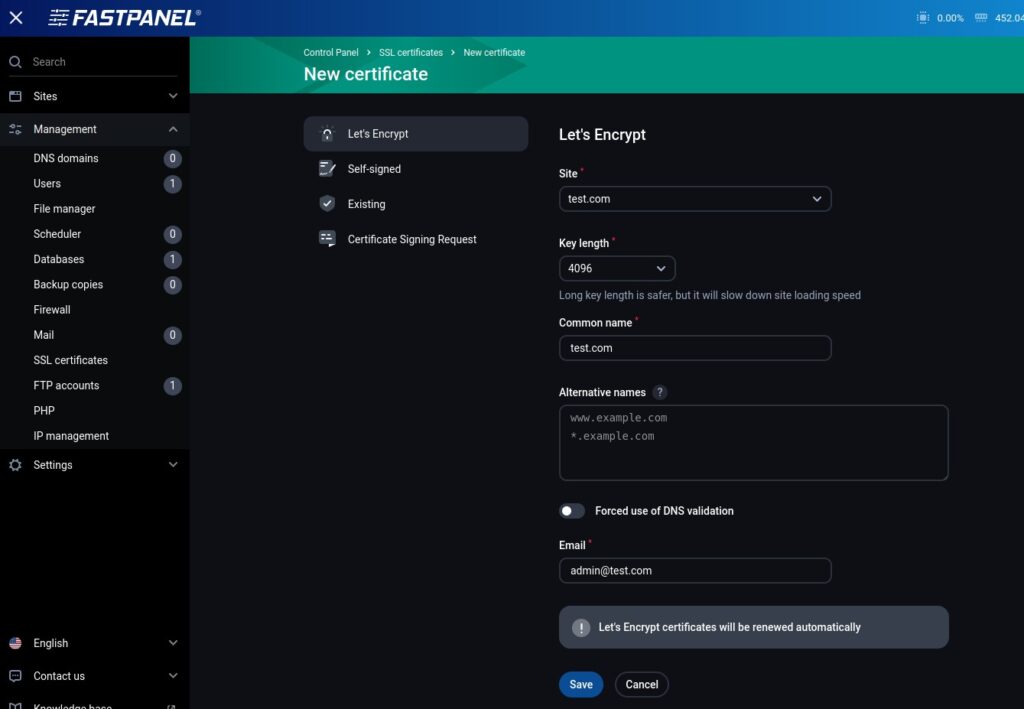
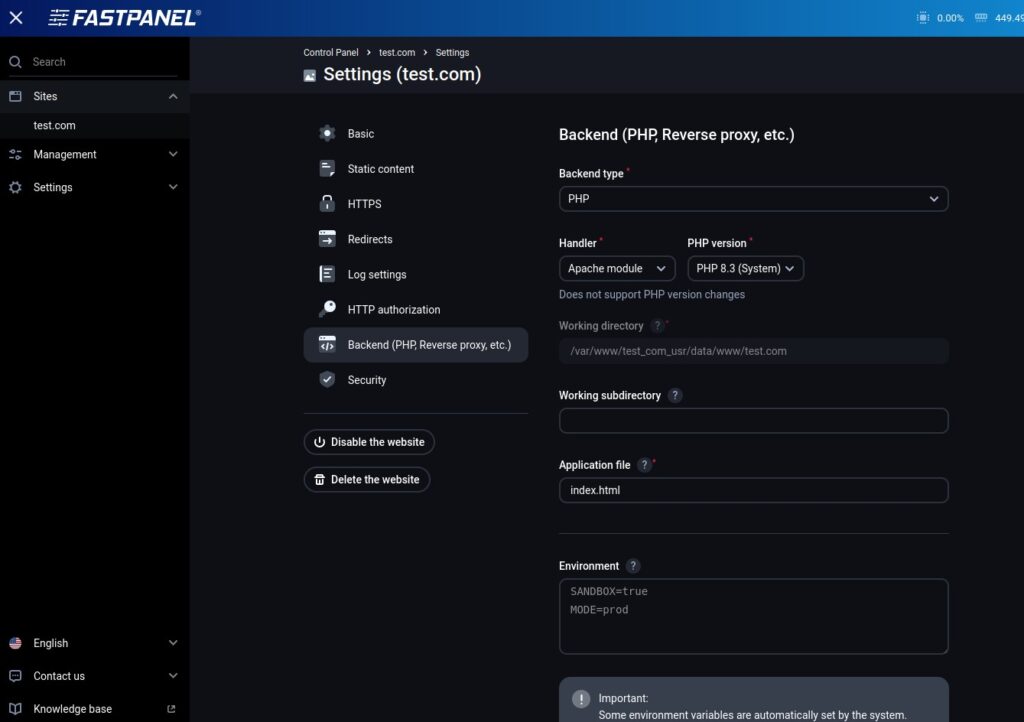
3. PHP and SSL Configuration: In the website card, go to the “SSL Certificates” section to install a free Let’s Encrypt SSL certificate with a single click. In the “Settings” section, you can change the PHP version for each website individually.
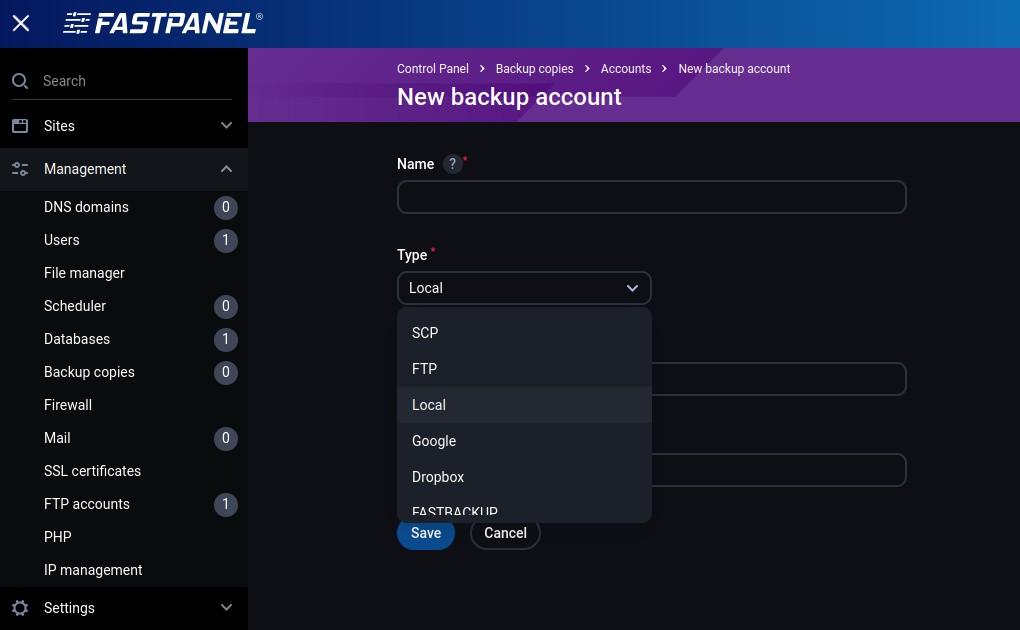
4. Configuring Backups: In the side menu, select “Backups” -> “Backup Accounts” and connect Google Drive, Dropbox, or an external FTP server to automatically save your data.
5. Conclusion
In summary, we can confidently say that FASTPANEL is a high-tech and mature solution that breaks the stereotype that a good server control panel must be expensive or complicated. The developers have managed to strike the perfect balance between rich functionality and a minimalist, intuitive interface.
The panel is ideal for both novice webmasters looking to launch their first website in just a few clicks and experienced administrators who will appreciate its flexible configuration options, support for modern tech stacks (from PHP to Node.js), and built-in security tools. Given that it’s free (or has an extremely affordable commercial model, depending on current terms) and receives regular updates, FASTPANEL is currently one of the best alternatives to the cumbersome and expensive competitors in the hosting market.