
Install MariaDB on your VPS using the Unihost MariaDB with phpMyAdmin template in Portainer. Select the application, set secure database credentials, and deploy the stack. Keep the database files in a persistent Docker volume, verify connectivity, and create backups with mariadb-dump. Expose port 3306 only when remote access is necessary and restricted.
Compatibility: Linux with Docker Engine and Portainer, MariaDB official Docker image and phpMyAdmin. Available features depend on the template version.
Requirements
You need a VPS with Docker and Portainer, administrator access, and free disk space for your database and backups. The original Unihost workflow also uses Nginx Proxy Manager to publish phpMyAdmin.
What is Portainer · VPS Unihost
Steps
Step 1. Deploy the Unihost template
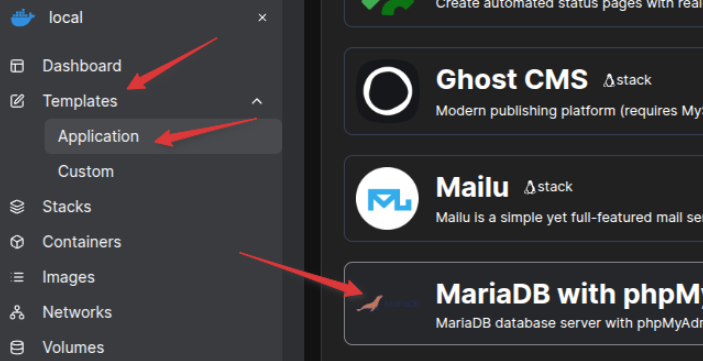
In Portainer, open Templates → Application, choose MariaDB with phpMyAdmin, fill in the required fields and deploy. The new MariaDB stack appears under Stacks. Verify containers with:
docker ps

Step 2. Configure credentials and storage
The official MariaDB image supports these initialization variables:
| Variable | Purpose |
|---|---|
| MARIADB_ROOT_PASSWORD | MariaDB root password |
| MARIADB_DATABASE | Database created during initialization |
| MARIADB_USER | Application database user |
| MARIADB_PASSWORD | Password for the application user |
MARIADB_ROOT_PASSWORD=YOUR_STRONG_ROOT_PASSWORD
MARIADB_DATABASE=appdb
MARIADB_USER=appuser
MARIADB_PASSWORD=YOUR_STRONG_USER_PASSWORD
Use strong, unique passwords. Initialization variables do not change an existing database stored in a reused volume. In the stack, keep a persistent volume mounted at /var/lib/mysql:
volumes:
  - mariadb_data:/var/lib/mysql
Step 3. Configure network access and phpMyAdmin
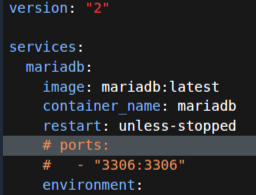
Containers on the same Docker network can connect to MariaDB on port 3306 without publishing it. Only enable external access when required, and restrict the port with the firewall or a VPN. The Unihost template lets you enable the port mapping in the stack editor:
ports:
  - "3306:3306"
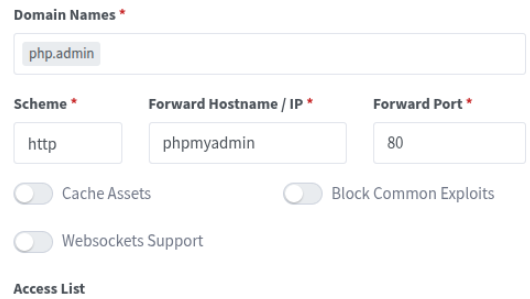
To access phpMyAdmin securely, configure a domain with Nginx Proxy Manager (NPM):
- Create a DNS A record for db.example.com pointing to the VPS public IP.
- Open NPM → Hosts → Proxy Hosts → Add Proxy Host.
- Set Domain Names to db.example.com and Scheme to http.
- Set Forward Hostname / IP to the phpMyAdmin container hostname reachable from NPM, and Forward Port to 80.
- Under SSL, request a Let’s Encrypt certificate, enable Force SSL, save and visit https://db.example.com.
NPM must be able to reach phpMyAdmin through a Docker network. Restrict access to phpMyAdmin. NPM proxies the phpMyAdmin HTTP interface, not the MariaDB database protocol on TCP port 3306.
Nginx Proxy Manager installation and setup guide
Keep database port 3306 private unless remote access is explicitly required; restrict any published port using firewall rules.

Step 4. Verify the database connection
Open the MariaDB terminal (replace CONTAINER with the name shown by docker ps):
docker exec -it CONTAINER mariadb -u root -p
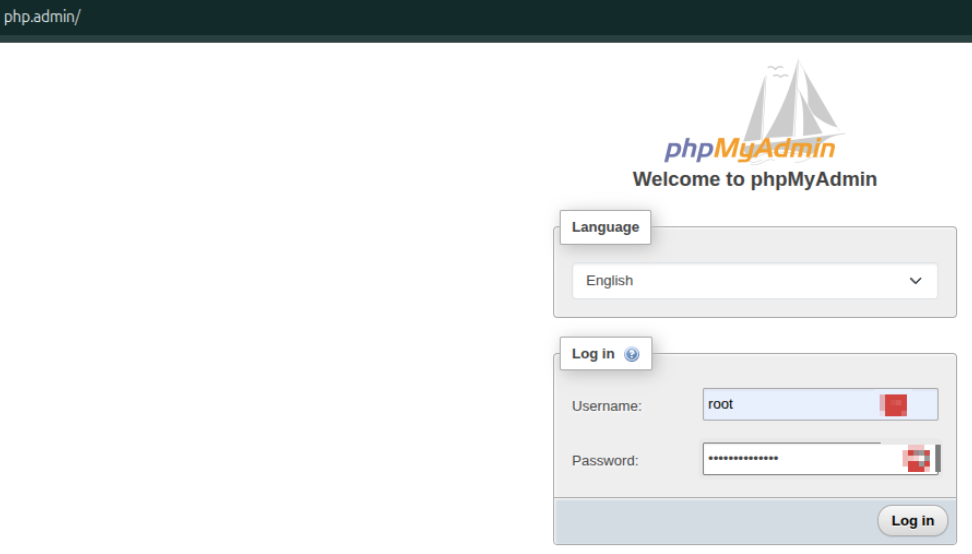
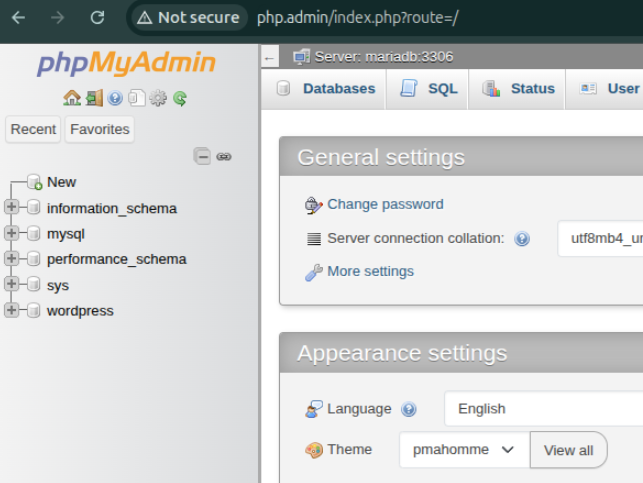
After entering the password, run the SQL query below. The list should contain your application database. You can also log in through phpMyAdmin over HTTPS.
SHOW DATABASES;
The screenshots show the original phpMyAdmin interface. For production access, use HTTPS through Nginx Proxy Manager and restrict access to trusted users.
Step 5. Back up MariaDB
Create a logical SQL backup on the Docker host with mariadb-dump:
docker exec CONTAINER sh -c 'exec mariadb-dump -u root -p"$MARIADB_ROOT_PASSWORD" appdb' > backup.sql
This example uses the MARIADB_ROOT_PASSWORD environment variable inside the container. If the template uses Docker secrets, use the matching authentication method. Check the backup file and store a copy outside the VPS.
Step 6. Update MariaDB
Back up the data first. In Portainer, select a compatible MariaDB image version, redeploy the stack and retain the existing volume. For supported upgrades the official image provides:
MARIADB_AUTO_UPGRADE=1
MARIADB_AUTO_UPGRADE runs the required system-table upgrade, but does not replace a full backup or guarantee a downgrade. Review the upgrade path before changing the major version.
Verify
Check that the MariaDB container is running, phpMyAdmin connects, the database is present, and the SQL backup is nonempty. Inspect the logs if needed:
docker ps
docker logs --tail 50 CONTAINER
ls -lh backup.sql
Troubleshooting
MariaDB does not start
Check the container logs, configuration, disk space and volume permissions.
Cannot connect remotely
Verify the database account, container network, port mapping and firewall. Do not expose 3306 to all IP addresses.
Password changes are ignored
The initialization environment variables do not reset passwords in an existing data directory. Change passwords with MariaDB SQL commands.
FAQ
How do I connect to MariaDB from another server?
Publish port 3306 only if needed, restrict it to trusted IPs, and use an appropriate MariaDB user. A private network or VPN is preferable.
Where is the data stored?
MariaDB stores data in /var/lib/mysql inside the container. A persistent Docker volume keeps it across container replacement.
How do I back up the database?
Use mariadb-dump to export an SQL backup and save a copy outside the server. Test restoration periodically.
How do I upgrade MariaDB?
Back up first, choose a compatible image tag, preserve the volume and redeploy. MARIADB_AUTO_UPGRADE can update system tables when necessary.
Related Articles
- What is Portainer
- Installing Traefik with Portainer
- Installing Ghost CMS with Portainer
- Database migration planning
- Nginx Proxy Manager setup
Run MariaDB with Unihost
Deploy MariaDB with prepared Portainer application templates or choose dedicated database hosting.