
The simplest and fastest way to install WordPress is to use the official Portainer template prepared by our team. This method minimizes manual configuration and allows you to deploy a stable, production-ready environment in just a few minutes.
Requirements
- A VPS with Portainer installed via the Unihost script
- A deployed NPM (Nginx Proxy Manager)
- Installed server MariaDB
First, you need to create a user through phpMyAdmin.
Follow these steps to successfully create a database for WordPress.

Go to the User accounts section and create a user for WordPress.

When creating the user, don’t forget to check the option “Create database with same name and grant all privileges”.


After creating the database, go to Portainer, open the Application section, and select WordPress.
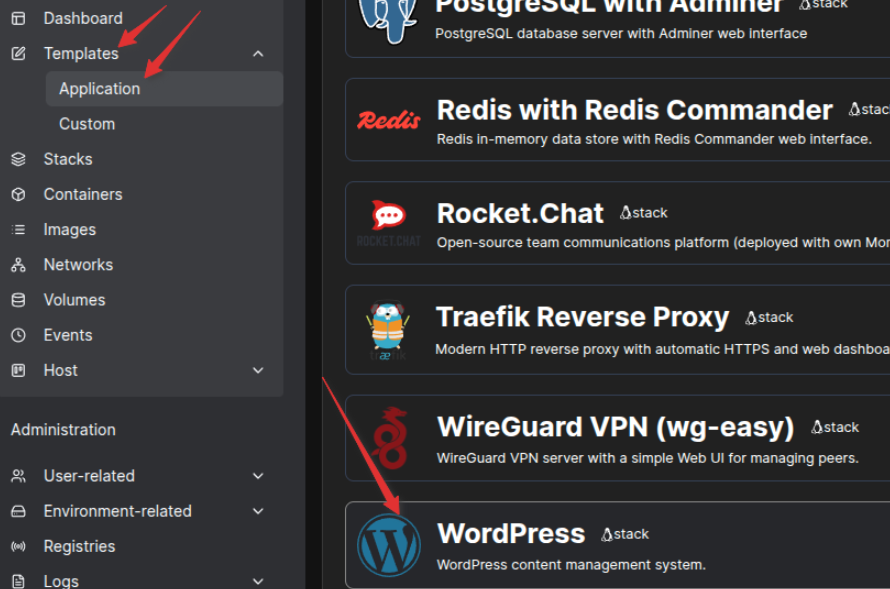
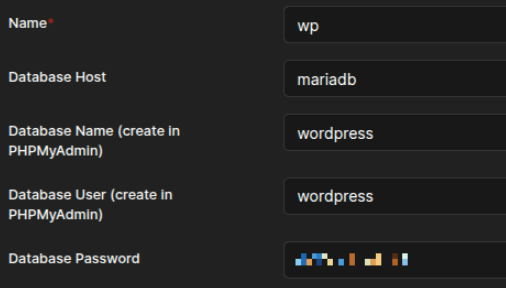
Now, in the Stacks section, you will see your deployed WordPress.

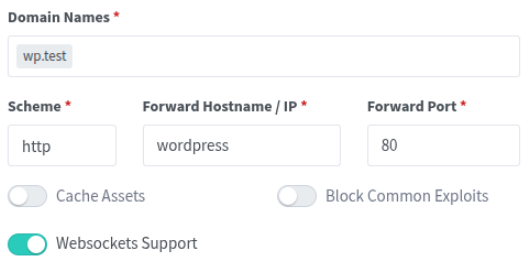
Go to NPM and create a proxy for your WordPress.
If you want to link your own domain to WordPress, make sure to specify that exact domain. During installation, WordPress records the domain name and will continue using it later.
If you are only testing WordPress, you can specify a test domain by first adding it to the hosts file.
Example:
<server_ip> wp.test

Fill in all the fields as shown in the screenshot.
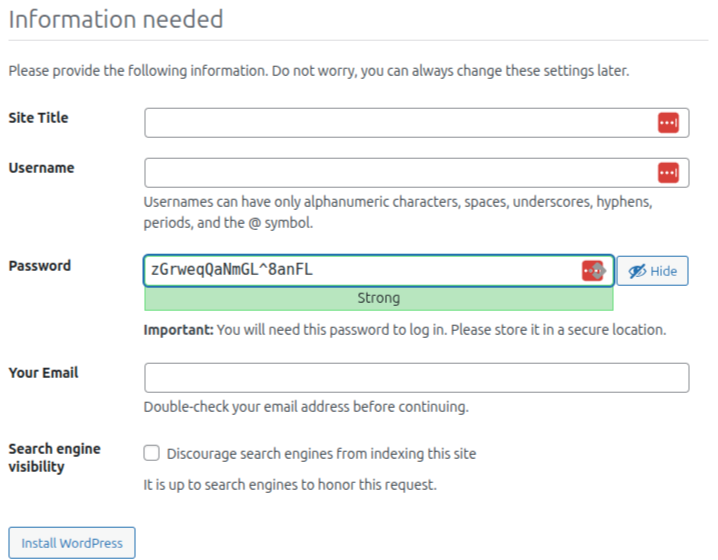
After that, go to your domain address — the WordPress installation page will open.
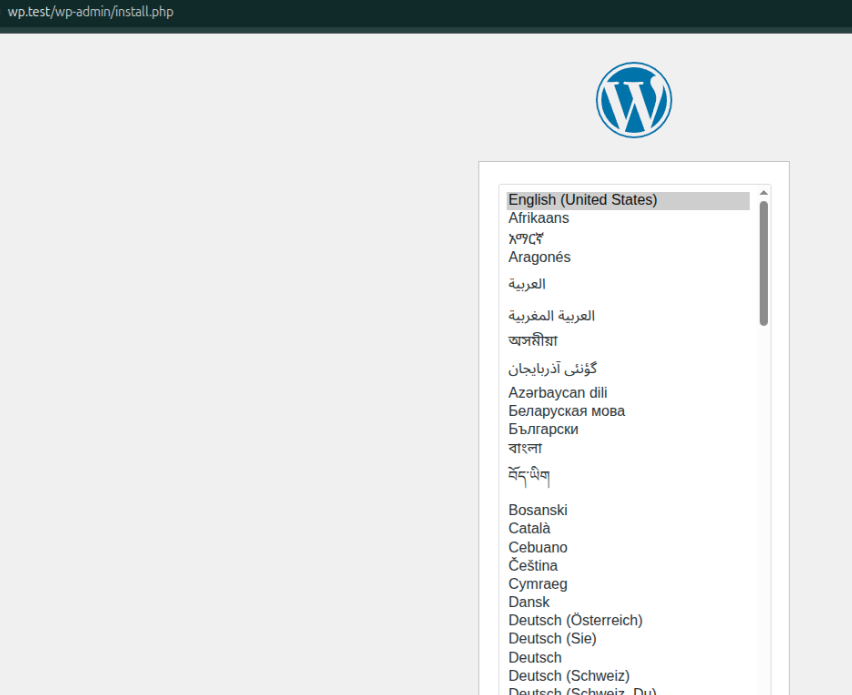
Fill in the required fields (site name, admin username, password, and email address) to proceed with the WordPress installation.
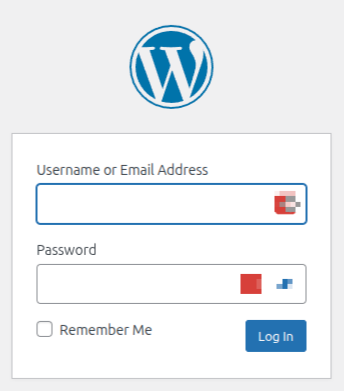
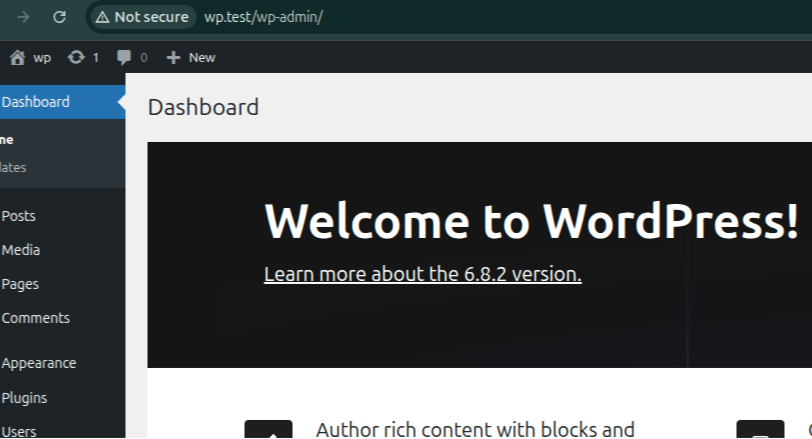
After a successful installation, you will be taken to the WordPress login page. Enter the credentials you created to access the admin panel.
Conclusion
Using a ready-made WordPress template significantly saves time and reduces the likelihood of errors. As a result, you get a fully functional website with WordPress and MariaDB “out of the box,” with minimal configuration effort.