
The fastest way to self-host Supabase on a VPS is to use the Unihost application template in Portainer. Open Templates, choose Application and select Supabase, then configure secure credentials and deploy the stack. Connect a domain through Nginx Proxy Manager or Traefik, enable HTTPS and back up PostgreSQL before using the deployment in production.
Compatibility: Linux with Docker Engine and Portainer; Supabase version follows the selected template. Documentation reviewed: November 6, 2026.
Requirements
You need a Linux VPS or dedicated server with Docker and Portainer, a domain with DNS access, and Nginx Proxy Manager or Traefik for HTTPS. See What is Portainer? and choose a suitable Unihost VPS.
Supabase lists these resources for running its main self-hosted components:
| Resource | Minimum | Recommended |
|---|---|---|
| CPU | 2 cores | 4+ cores |
| RAM | 4 GB | 8+ GB |
| SSD | 40 GB | 80+ GB |
Steps
Step 1. Select the Supabase template
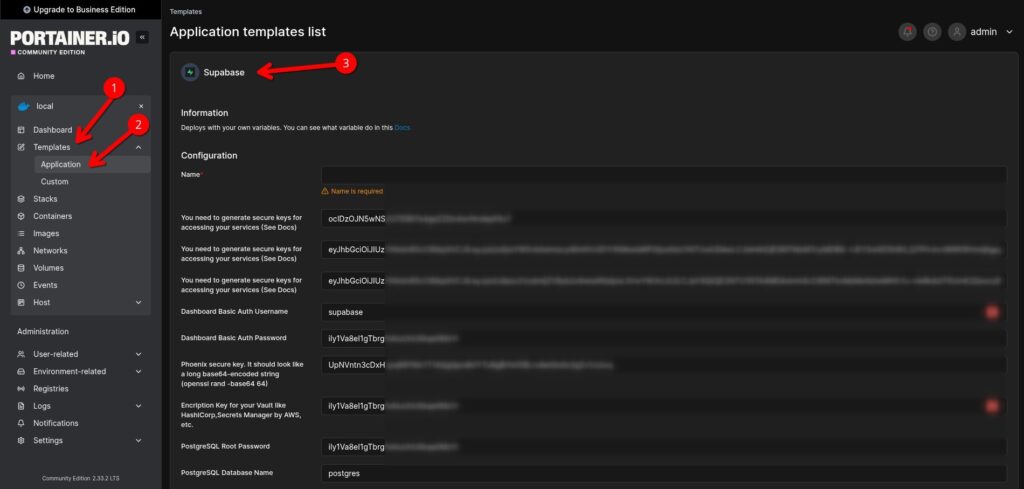
In your Portainer instance, open Templates → Application → Supabase. Select the Unihost template. This preserves the quick installation method used in the original guide.
Step 2. Set passwords and API keys
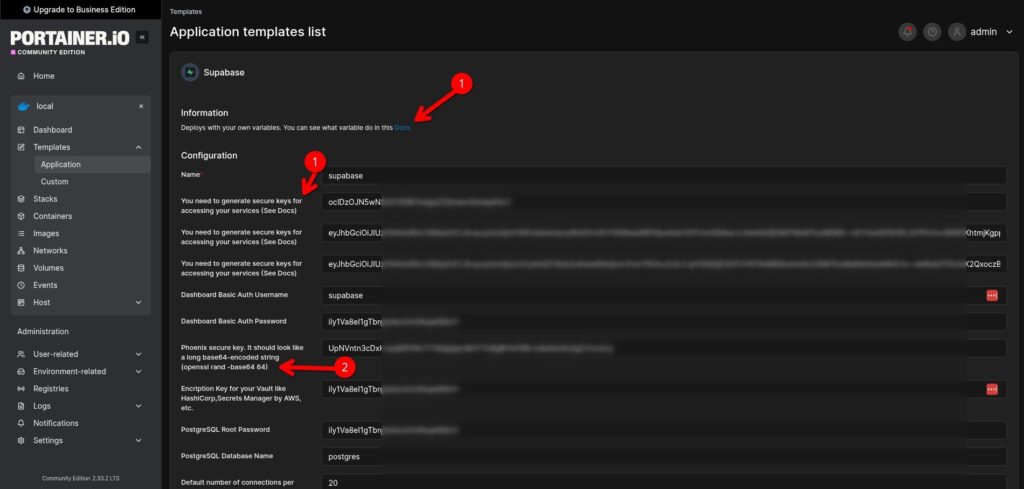
Fill in the security fields supplied by your template. Never deploy with example secrets. For legacy JWT-based templates, check the following variables:
POSTGRES_PASSWORD=your_secure_password
JWT_SECRET=your_secure_jwt_secret
ANON_KEY=generated_legacy_public_key
SERVICE_ROLE_KEY=generated_legacy_private_key
DASHBOARD_USERNAME=your_admin_username
DASHBOARD_PASSWORD=your_secure_dashboard_password
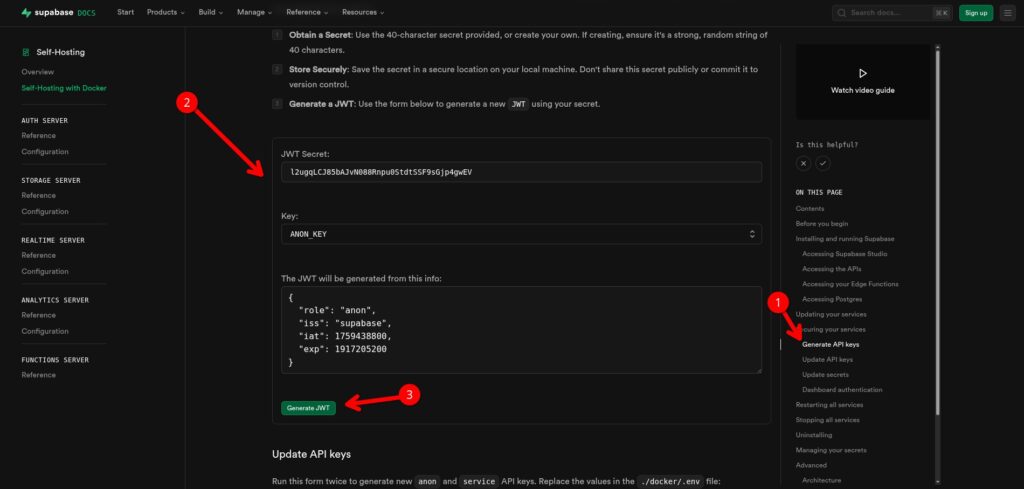
Current Supabase releases also use SUPABASE_PUBLISHABLE_KEY and SUPABASE_SECRET_KEY, with an asymmetric signing option. Use the variables supported by your specific template, not a mixture of incompatible key formats. The official Docker configuration includes scripts for generating secrets:
sh utils/generate-keys.sh
sh utils/add-new-auth-keys.sh
These scripts must be run from the official Supabase Docker configuration directory, if you use that configuration. Transfer the generated values to the matching Portainer template fields. Keep privileged keys private.
Step 3. Deploy and inspect the stack
Deploy the application template. In Stacks and Containers, confirm that the Supabase services are running. From the Docker host, inspect containers and view logs for any failing service:
docker ps
docker logs --tail 100 SUPABASE_CONTAINER
What runs inside the stack?
| Component | Purpose |
|---|---|
| Studio | Web dashboard |
| API gateway | Routes incoming API requests (Envoy in recent releases; Kong in older templates) |
| Auth | Sign-up and login |
| PostgREST | REST API for PostgreSQL |
| Realtime | Database change events |
| Storage | File storage API |
| Postgres | Database |
Step 4. Set a domain and HTTPS
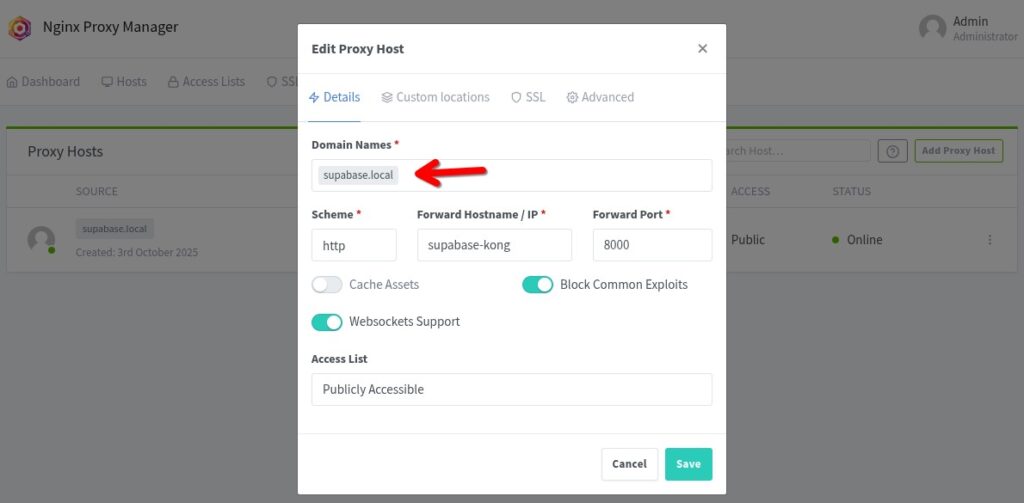
To publish Supabase securely, create a DNS A record for supabase.example.com pointing to the VPS IP. Configure Nginx Proxy Manager (NPM) as the main reverse proxy:
- Open NPM → Hosts → Proxy Hosts → Add Proxy Host.
- Enter supabase.example.com in Domain Names and select Scheme: http.
- Set Forward Hostname / IP to the Supabase API Gateway service name reachable from NPM. Set Forward Port to the gateway port specified by the Unihost template.
- Open SSL, choose Request a new SSL Certificate, accept the Let’s Encrypt terms and enable Force SSL.
- Save the proxy host and open https://supabase.example.com.
NPM and the Supabase API Gateway must share a reachable Docker network. Protect Studio with dashboard credentials and do not publish the PostgreSQL port. Configure public URLs to use HTTPS.
Full instructions for installing and accessing Nginx Proxy Manager
Traefik with Portainer is an alternative for HTTPS.
supabase.example.com  A  192.0.2.10

SUPABASE_PUBLIC_URL=https://supabase.example.com
API_EXTERNAL_URL=https://supabase.example.com/auth/v1
SITE_URL=https://app.example.com
Set the public URLs in the template or its environment to the HTTPS address; SITE_URL refers to your client application rather than Studio. Protect Studio with dashboard credentials and do not expose PostgreSQL directly to the public internet.
Step 5. Back up PostgreSQL
A logical database backup can be created from the PostgreSQL container. Replace SUPABASE_DB_CONTAINER with the actual database container name from docker ps:
docker exec SUPABASE_DB_CONTAINER pg_dump -U postgres -d postgres -Fc > supabase-backup.dump
The database dump does not include uploaded Storage files, container configuration or secrets. Back up those separately and test restoration.
Step 6. Update Supabase
Before updating, back up PostgreSQL, Storage and configuration. Review the official update guidance and update the Unihost Portainer template as a compatible set of services. Do not change every image to latest independently. The official update.sh script applies to deployments using the official project layout, not necessarily to Portainer templates.
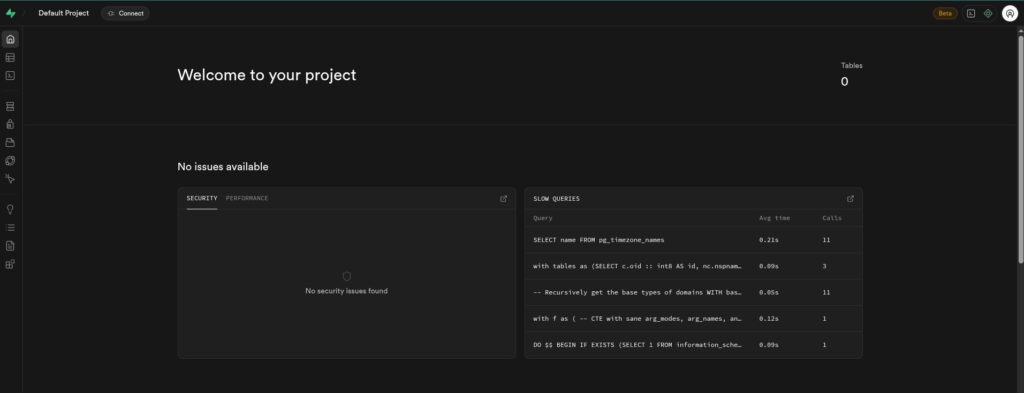
Verify
Confirm that Studio opens through HTTPS, dashboard authentication works, the API responds, and all required containers remain healthy. A response from the gateway, even 401 for a protected route, confirms connectivity but does not prove all services are healthy.
docker ps
curl -I https://supabase.example.com/
Troubleshooting
Studio does not open
Check the DNS A record, TLS certificate, proxy target and Docker container status. Inspect logs for the API gateway and Studio.
Authentication or API key errors
Confirm that the JWT secret and API keys match the template version. Check DASHBOARD_USERNAME and DASHBOARD_PASSWORD for Studio access. Never expose service-role or secret keys in a browser application.
Containers keep restarting
Check free RAM and disk space, PostgreSQL connectivity and the affected container logs:
docker logs --tail 100 SUPABASE_CONTAINER
free -h
df -h
FAQ
Is self-hosted Supabase free?
The open-source Supabase stack can run on your own server. VPS, storage, backups and administration still have costs.
What server resources does Supabase need?
For the full self-hosted stack, Supabase documents a minimum of 2 CPU cores, 4 GB RAM and 40 GB SSD, with 4 cores, 8 GB RAM and 80 GB SSD recommended.
How do I update a self-hosted Supabase?
Back up all data, review the official release instructions, then update the template as a compatible stack in Portainer.
How do I back up the database?
Use pg_dump for PostgreSQL and also back up Storage files, configuration and secrets. Test restoring the backups.
Can I use my own domain with HTTPS?
Yes. Point DNS to the server and configure HTTPS through Nginx Proxy Manager or Traefik in front of the API gateway.
Supabase Cloud or self-hosted?
| Feature | Supabase Cloud | Self-hosted |
|---|---|---|
| Hosting | Managed service | Your VPS or dedicated server |
| Backups | Managed options depend on plan | You configure and test them |
| Server control | Provider-managed infrastructure | Full OS and service control |
Related Articles
- Portainer
- Traefik with Portainer
- MariaDB with Portainer
- Official Supabase Docker documentation
- Nginx Proxy Manager setup
Host Supabase with Unihost
Deploy a database-backed application using ready-made Portainer templates or choose a VPS sized for your workload.