
Introduction
OPNsense can be used in Proxmox VE as a virtual firewall, router, and VPN gateway. In this setup, it separates external traffic from the internal network of virtual machines and also allows secure VPN access to them.
OPNsense supports several VPN technologies, including WireGuard and OpenVPN. In addition, it can publish internal services externally through NAT / Port Forward and reverse proxy scenarios.
In this article, we will cover:
- creating a virtual machine with OPNsense
- assigning WAN and LAN
- basic network configuration
- connecting a Windows VM to the internal network
- configuring WireGuard for access to OPNsense and virtual machines
In this scenario, OPNsense is used primarily as a central point for routing, traffic filtering, and VPN access.
Network layout
We will use the following setup:
- OPNsense WAN is connected to vmbr0
- OPNsense LAN is connected to vmbr1
- Windows VMs are connected to vmbr1
- a remote client connects to OPNsense via WireGuard
- after connecting, access to OPNsense and internal VMs becomes available
Step 1. Prepare the OPNsense ISO image
If the image was downloaded in .iso.bz2 format, it must be extracted:
This will produce an .iso file that can be uploaded to Proxmox ISO storage.
Step 2. Create the OPNsense virtual machine
In Proxmox, create a new virtual machine and attach the OPNsense ISO.
At minimum, you will need:
- 2 network interfaces
- one for WAN
- one for LAN
If you are using an additional public IP, the WAN interface must be connected to the external bridge and, if required, use the MAC address provided by the hosting provider for that additional IP.
After creating the VM, you may only have one Network Device. In that case, add a second one:
Your VM → Hardware → Add → Network Device
For the second interface, select vmbr1.
Recommended layout:
- Net0 → vmbr0
- Net1 → vmbr1
Both network adapters can be configured as VirtIO.

Step 3. Install OPNsense
After booting from the ISO, choose the system installation option.
In live mode, you will see options for logging in and starting the installer.
Installation credentials:
- login: installer
- password: opnsense
After the installation is complete, set a new password for root. You will need it later to log in to the system and access the web interface.
Once the installation is finished:
- reboot the virtual machine
- boot into the installed system
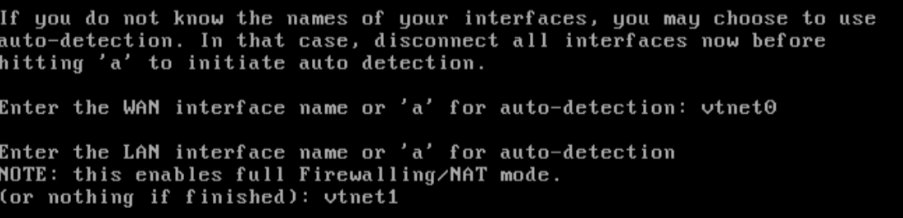
Step 4. Assign the WAN and LAN interfaces
After the first boot of OPNsense, assign the interfaces as follows:
- WAN → vtnet0
- LAN → vtnet1
If OPNsense only detects one interface, it usually means one of the following:
- the second network adapter was not added to the virtual machine
- the internal bridge has not yet been created in Proxmox
To assign the interfaces in the OPNsense console, press 1 and specify:
- WAN → vtnet0
- LAN → vtnet1
Step 5. Configure the WAN and LAN IP addresses
WAN configuration
To configure the IP address, press 2, select the WAN interface, and enter:
- the additional public IP address
- the subnet mask / prefix
- the gateway
Use the network settings provided by your hosting provider here.
LAN configuration
Now configure the LAN interface so that virtual machines can automatically receive IP addresses from the internal network and access the Internet through OPNsense.
In the OPNsense console, press 2 again and select LAN.
Example values:
- Configure IPv4 address LAN interface via DHCP? → n
- Enter the new LAN IPv4 address → 192.168.10.1
- Enter the new LAN IPv4 subnet bit count → 24
- For a LAN, press <ENTER> for none → just press Enter
- Configure IPv6 address LAN interface via DHCP6? → n or Enter
- Enter the new LAN IPv6 address → Enter
- Do you want to enable the DHCP server on LAN? → y
- Range start → 192.168.10.100
- Range end → 192.168.10.200
- Do you want to revert to HTTP as the web configurator protocol? → n
As a result, OPNsense will hand out LAN addresses over DHCP.
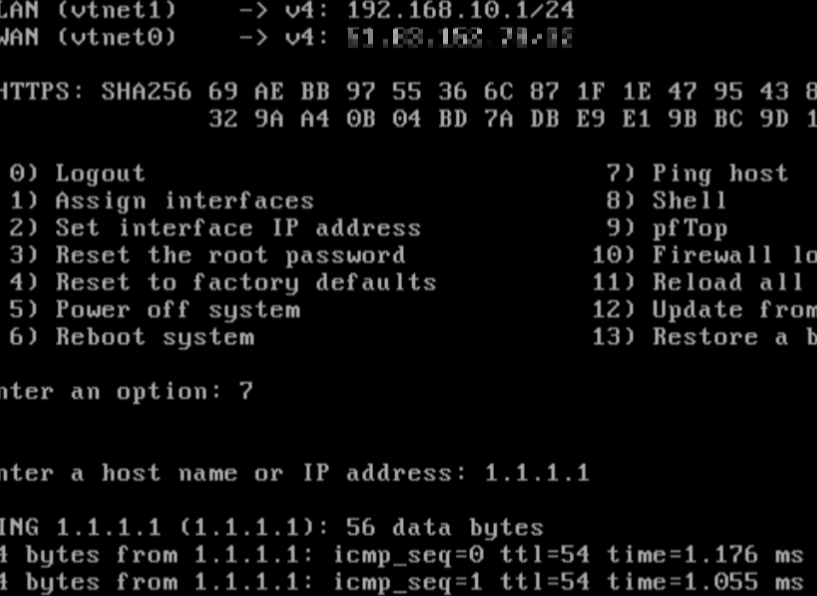
Step 6. Verify the network layout
Example of a working setup:
- WAN — a public IP address
- LAN — 192.168.10.1/24
Step 7. Connect a Windows VM to the LAN
At this stage, you need to create a separate Windows VM, because it will be used to open the OPNsense web interface from the internal network and perform the initial setup. The virtual machine is created in Proxmox from a Windows ISO image, using the same general approach as when installing OPNsense.
When creating the Windows VM, make sure it is connected to vmbr1 so that it is placed in the internal LAN behind OPNsense. You should also use VirtIO for the virtual disk and network adapter. This is important because without the VirtIO drivers, the Windows installer usually cannot detect the disk or the network interface. For this reason, you should attach the VirtIO driver ISO together with the Windows ISO, so the required drivers can be loaded during installation.
After the Windows VM is installed, it should receive an internal IP address from the DHCP service on the OPNsense LAN interface. You can then use it to open the OPNsense address in a browser and continue the configuration.
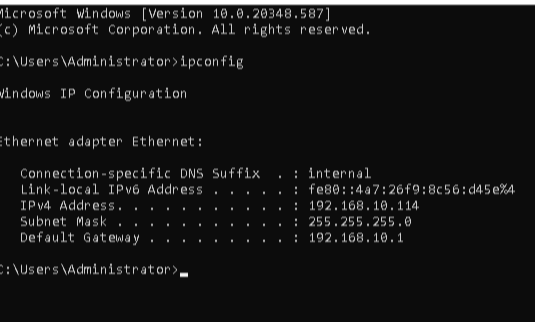
After Windows boots, check the network settings with:
The expected result is:
- an IPv4 address from the 192.168.10.0/24 network
- gateway 192.168.10.1
Step 8. Connect to OPNsense over LAN
For the initial setup, it is more convenient to first access OPNsense from the internal network.
On the Windows VM, open a browser and go to the OPNsense LAN address. In our example, it is:
Enter the login details:
- login: root
- password: the one you set when the installation was completed
Step 9. Allow external access to OPNsense only from your IP
For convenience during дальнейшей настройки, you can temporarily allow access to the OPNsense web interface from the outside, but only from your external IP address.
Go to:
Firewall → Rules → WAN
Click Add and create a rule with the following parameters:
- Action: Pass
- Interface: WAN
- TCP/IP Version: IPv4
- Protocol: TCP
In the Source section:
- Source: Single host or Network
- enter your external IP address
In the Destination section:
- Destination: This Firewall
In the Destination Port Range section:
- From: HTTPS
- To: HTTPS
Description, for example:
Allow HTTPS to OPNsense GUI from my IP
Save the rule and click Apply Changes.
After that, the OPNsense web interface will be accessible from your external IP address.
Step 10. Install the WireGuard plugin
In the OPNsense web interface, go to:
System → Firmware → Plugins
Install the WireGuard plugin.
After installation, open:
VPN → WireGuard
WireGuard is one of the most convenient options for accessing OPNsense and internal virtual machines. However, OPNsense is not limited to it: the system also supports OpenVPN, as well as road warrior and site-to-site scenarios.
For small infrastructures, WireGuard is usually simpler and easier to maintain. OpenVPN is also a good option if you need a more traditional SSL VPN approach or the ability to export ready-to-use client profiles.
Step 11. Create a WireGuard instance
In the section:
VPN → WireGuard → Instances
create an instance, for example:
- Name: wgroad
- Listen Port: 51820
- Tunnel Address: 10.10.10.1/24
Generate a key pair and save the instance.
Step 12. Prepare the WireGuard client on your PC
To connect to the local network via WireGuard, install it on your computer and generate the client keys.
Below is one working example for Linux.
1. Install WireGuard
sudo apt update
sudo apt install -y wireguard wireguard-tools
Check that the installation was successful:
which wg
Expected result:
/usr/bin/wg
2. Generate the client keys
mkdir -p ~/wireguard
chmod 700 ~/wireguard
wg genkey | tee ~/wireguard/client.key | wg pubkey > ~/wireguard/client.pub
You can view the keys with:
cat ~/wireguard/client.pub
cat ~/wireguard/client.key
- client.pub — the client’s public key, which will be needed for the Peer in OPNsense
- client.key — the client’s private key, which will be needed for the wg0.conf file
Step 13. Create the client peer
In the section:
VPN → WireGuard → Peers
create a peer for the client system.
Example:
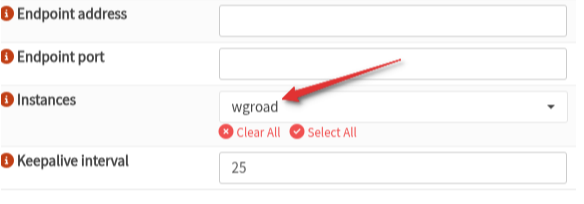
- Name: os
- Public Key: paste the contents of client.pub
- Allowed IPs: 10.10.10.2/32
- Keepalive: 25
After that, attach the peer to the created instance.
Step 14. Enable WireGuard globally
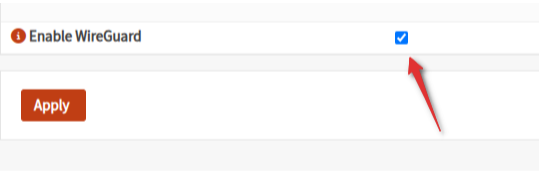
At the bottom of the WireGuard page, enable:
- Enable WireGuard
Then click Apply.
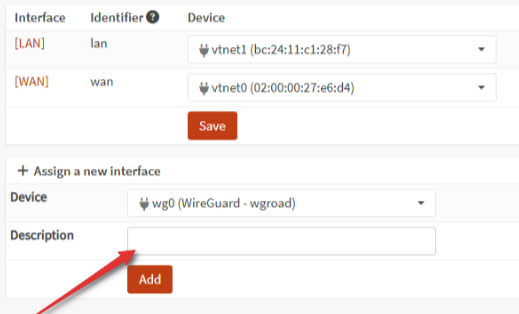
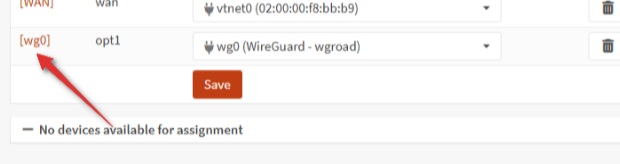
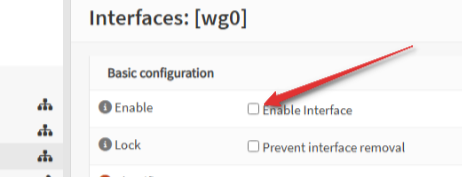
Step 16. Create firewall rules for WireGuard
1. WAN rule
Go to:
Firewall → Rules → WAN
Add the following rule:
- Action: Pass
- Protocol: UDP
- Source: any
- Destination: This Firewall
- Destination Port: 51820
- Description: Allow WireGuard
Save the rule and click Apply.
2. Rules on the WireGuard interface
Go to:
Firewall → Rules → wg
Create two rules.
Rule 1 — access to the LAN
- Action: Pass
- Interface: wg
- Direction: in
- TCP/IP Version: IPv4
- Protocol: any
- Source: WG net
- Destination: LAN net
- Description: WG to LAN
Rule 2 — access to OPNsense itself
- Action: Pass
- Interface: wg
- Direction: in
- TCP/IP Version: IPv4
- Protocol: any
- Source: WG net
- Destination: This Firewall
- Description: WG to Firewall
Save both rules and click Apply.
After that, the following will be accessible over VPN:
- OPNsense itself
- the internal network 192.168.10.0/24
Step 17. Configure the WireGuard client configuration
On the client Linux system, create a configuration file:
nano ~/wireguard/wg0.conf
Example content:
[Interface]
PrivateKey = <client private key>
Address = 10.10.10.2/32

[Peer]
PublicKey = <server public key>
Endpoint = <WAN-IP>:51820
AllowedIPs = 10.10.10.0/24, 192.168.10.0/24
PersistentKeepalive = 25
Where:
- PrivateKey — the contents of the client.key file
- PublicKey — the server public key from the WireGuard instance in OPNsense
- Endpoint — the external IP address of OPNsense and port 51820
Bring the tunnel up:
sudo wg-quick up ~/wireguard/wg0.conf
Check the connection:
ping -c 4 10.10.10.1
ping -c 4 192.168.10.1
If everything works, then check access to the Windows VM using its internal IP address.
Step 18. Connect to the Windows VM over VPN
After the VPN connection is established, the remote client should have access to:
- OPNsense: 192.168.10.1
- Windows VM: for example 192.168.10.109
If Windows does not respond to ping, this is often related to Windows Firewall. At the same time, RDP may already work if it is enabled.
It is recommended to:
- enable Remote Desktop
- allow ICMP Echo in Windows Firewall if needed
Additional information: OPNsense is not limited to VPN
Although OPNsense is used in this article as a firewall and VPN gateway, its capabilities go beyond that.
In addition to WireGuard and OpenVPN, OPNsense can:
- publish internal services externally through Destination NAT / Port Forward
- use reverse proxy for HTTP(S), TCP, and in some cases UDP services
- proxy not only websites, but also other applications depending on the selected reverse proxy component
The OPNsense ecosystem includes solutions based on nginx, HAProxy, and Caddy, which are suitable not only for websites but also for more general proxy scenarios.
In other words, OPNsense can be used not only as a “VPN box,” but also as a central point for publishing internal services. In terms of approach, this is indeed similar to Nginx Proxy Manager, but in a more flexible and infrastructure-oriented form, with firewall rules, NAT, segmentation, VPN, and additional services in a single node.
At the same time, the firewall itself is better used as a routing and publishing point rather than as a place to host websites, applications, or databases. For a website, panel, application, or database, it is safer to allocate a separate internal VM and publish it through OPNsense as needed.
Why this setup is convenient
This approach makes it possible to:
- avoid exposing RDP directly to the Internet
- use OPNsense as a central VPN gateway
- securely connect to multiple virtual machines
- manage access through firewall rules
- publish internal web services and other applications externally through OPNsense when needed
Conclusion
After completing these steps, you get a complete setup:
- Proxmox VE as the hypervisor
- OPNsense as a virtual firewall, router, and VPN gateway
- Windows VM in the internal network
- access to OPNsense and VMs via WireGuard
- the ability to use OpenVPN, NAT, and reverse proxy later for more advanced service publishing scenarios
This setup is safer and more convenient than exposing individual services directly to the Internet, and it works well for a small or medium-sized infrastructure that needs to be expanded gradually.