
Introduction
After installing Proxmox VE, it is important to configure the network layout correctly. This affects access to the web interface, the operation of virtual machines, and the ability to use separate internal segments for a firewall or client VMs.
This article covers a scenario where:
- the Proxmox server gets Internet access through the primary network interface
- an external bridge is created for WAN
- an internal bridge is created for the local network of virtual machines
- the host remains accessible independently of the virtual firewall
Network layout
The following setup is used in this scenario:
- vmbr0 — the external bridge through which both the host and the firewall VM’s WAN interface access the Internet
- vmbr1 — the internal bridge for the local network of virtual machines
The logic is as follows:
Internet
|
vmbr0
|
Proxmox host
|
OPNsense WAN
OPNsense LAN
|
vmbr1
|
Windows VM / other VMs
Step 1. Configure the external bridge vmbr0
The main idea is:
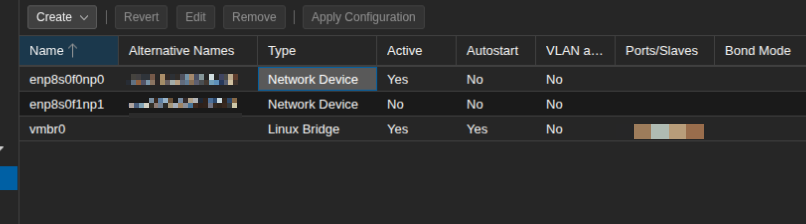
- set the physical interface to manual mode
- move the IP address and default route to vmbr0
Example configuration:
auto lo
iface lo inet loopback

iface enp8s0f0np0 inet manual

auto vmbr0
iface vmbr0 inet dhcp
   bridge-ports enp8s0f0np0
   bridge-stp off
   bridge-fd 0

iface enp8s0f1np1 inet manual
Replace enp8s0f0np0 with the actual name of your network interface, which you can find using:
ip a
If your network uses DHCP, iface vmbr0 inet dhcp is enough.
If you are using a static configuration, specify the following on vmbr0:
- IP address
- netmask
- gateway
Step 2. Apply the configuration
After editing /etc/network/interfaces, you can apply the new settings with:
ifreload -a
If you are not fully confident in the changes, it is safer to reboot the server:
reboot
After the system comes back up, check the network configuration again:
ip a
ip r
The expected result is:
- the IP address is assigned to vmbr0
- the default route uses vmbr0
- the physical interface is attached as a bridge port
Step 3. Create the internal bridge vmbr1
The internal bridge is used for the local network of virtual machines. It must not be attached to any physical network interface.
In the Proxmox web interface:
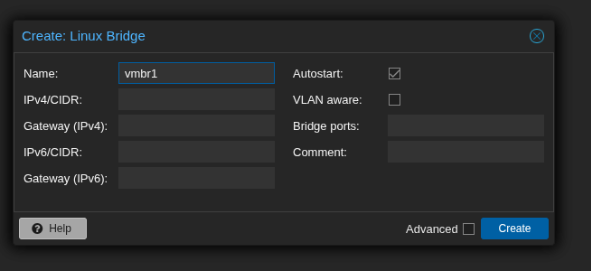
Go to Node → Network.
Click Create → Linux Bridge.
Set the following values:
- Name: vmbr1
- Autostart: enabled
- Bridge ports: leave empty
- IPv4/CIDR: leave empty
- Gateway: leave empty
This will create an internal virtual switch.
After creating the bridge, apply the network settings.
Step 4. Make sure both bridges are available
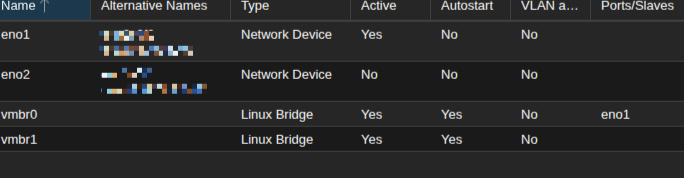
After applying the configuration, the network list should include:
- the physical interfaces
- vmbr0
- vmbr1
vmbr0 is used for external traffic.
vmbr1 is used for the internal segment between the firewall and the guest systems.
Practical use of the bridges
Later, the virtual machine interfaces are connected as follows:
- WAN of the firewall VM → vmbr0
- LAN of the firewall VM → vmbr1
- Windows VM → vmbr1
This makes it possible to:
- keep the host separate
- avoid depending on the virtual firewall for access to Proxmox
- build isolated internal networks
Conclusion
After configuring the network on the Proxmox host, you end up with two key zones:
- the external bridge vmbr0
- the internal bridge vmbr1
This setup works well with OPNsense and provides a solid foundation for building a secure infrastructure for Windows VMs and other services.