
In the previous articles, we covered the basic virtual infrastructure layout and the setup of an environment for remote work. Now we move on to the final stage — organizing backup for virtual machines. This is necessary to protect production systems from unexpected failures, configuration mistakes, unsuccessful updates, and other situations that can lead to data loss or service downtime. First, we will configure local backups, and then we will add a second layer of protection — an external copy in S3-compatible storage.
How the setup works
This configuration uses the following logic:
- Proxmox VE sends virtual machine backups to a local datastore, for example pbs-local
- after the backup is completed, PBS maintenance tasks are run: Prune and Garbage Collection
- then a Sync Job is started, which copies the data from pbs-local to a second datastore, for example pbs-s3
- the second datastore uses S3-compatible object storage as its backend
As a result, the local backup process remains fast, while the external copy is created afterwards and does not affect the running virtual machines.
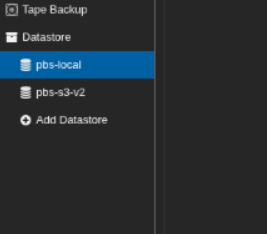
Step 0. Install Proxmox Backup Server
Before configuring backups, you first need to install Proxmox Backup Server. In our setup, it is used locally on the same server as the main infrastructure, because this is the model in which we first create fast local backups and only then add an external storage layer.
You can find the step-by-step installation process for Proxmox Backup Server in the official Proxmox documentation at this link:
https://pbs.proxmox.com/docs/installation.html
In this example, we assume that Proxmox Backup Server is already installed, accessible through the web interface, and ready for datastore creation.
Step 1. Create a local datastore in PBS
In the Proxmox Backup Server interface:
- open Add Datastore
- in the Name field, enter for example pbs-local
- in the Backing Path field, specify the path to the local storage directory, for example /mnt/pbs-local
- save the datastore
This datastore should be located on a local disk or on a separate partition of the server.
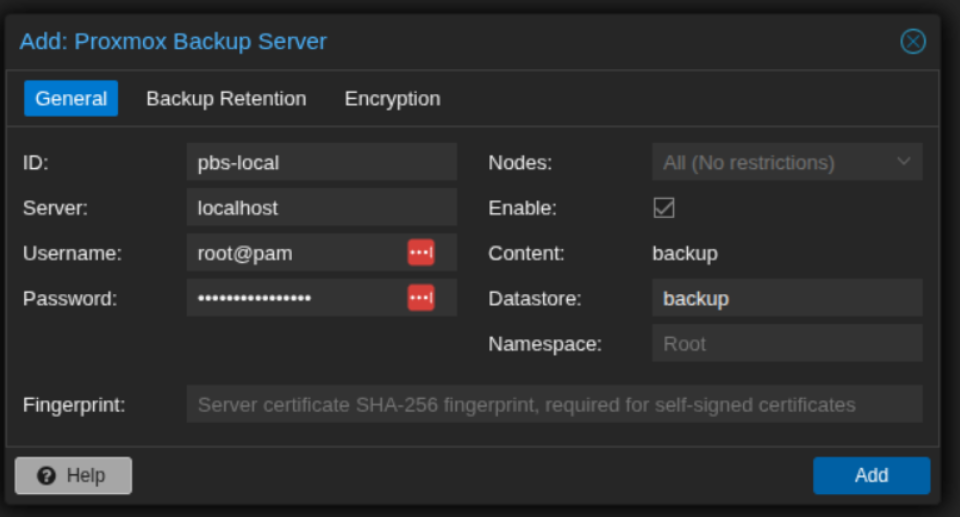
Step 2. Add the local PBS datastore to Proxmox VE
After creating the datastore, it needs to be connected to Proxmox VE as a backup storage.
In Proxmox VE:
- go to Datacenter → Storage
- click Add → Proxmox Backup Server
- fill in the fields:
- ID: for example pbs-local
- Server: the PBS address, for example localhost or the server IP
- Username: the PBS user
- Password: the user password
- Datastore: pbs-local
- Fingerprint: the PBS certificate fingerprint
- click Add
After that, the pbs-local storage will appear in the list of storage backends in Proxmox VE.
Step 3. Create a backup job in Proxmox VE
Now you need to configure regular backup of virtual machines to the local PBS datastore.
In Proxmox VE:
- go to Datacenter → Backup
- click Add
- specify:
- Node: the required node
- Storage: pbs-local
- Selection mode: choose the required VMs
- Mode: Snapshot
- Schedule: a convenient run time
- configure retention if needed
- save the job
From this point on, virtual machine backups will first be stored in the local datastore.
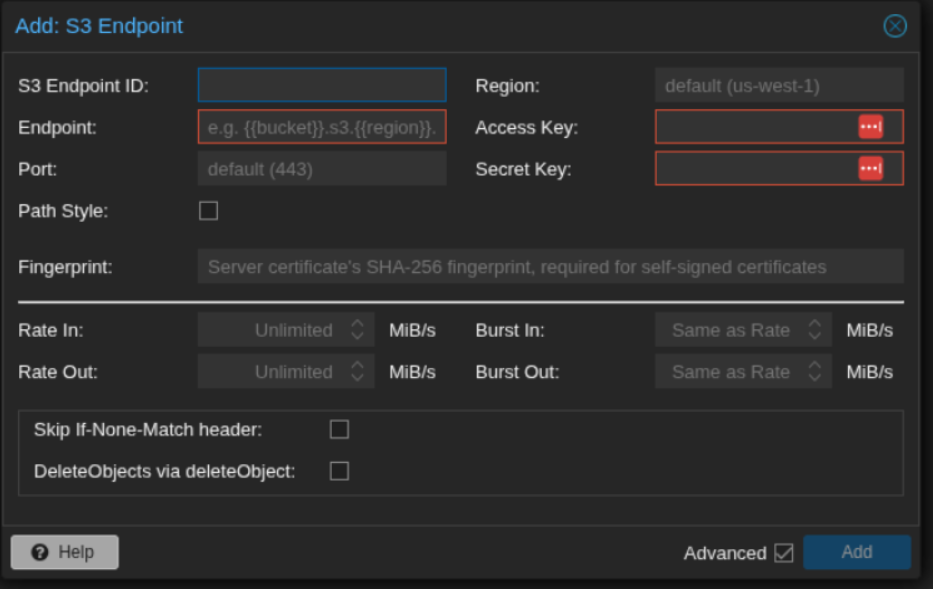
Step 4. Add an S3 endpoint in PBS
After configuring local backups, you can prepare a second datastore for the external copy.
To do this, you first need to add an S3 endpoint in PBS:
- open Configuration → S3 Endpoints
- click Add
- specify:
- endpoint name
- endpoint URL
- access key
- secret key
- region
- if the S3-compatible storage requires additional compatibility settings, enable the necessary options in advanced settings, for example Skip If-None-Match header
- save the endpoint
After that, PBS will be able to use the object storage as the backend for a separate datastore.
Step 5. Create a second datastore with the S3 type
You can now create a second datastore that will use object storage.
In PBS:
- click Add Datastore
- in the Name field, enter for example pbs-s3
- in the Datastore Type field, select S3
- in the Local Cache field, specify a separate local cache path
- in the S3 Endpoint ID field, select the endpoint you created earlier
- in the Bucket field, select or enter the bucket
- save the datastore
This datastore will use an S3 backend, but a local cache path is still required for it to function.
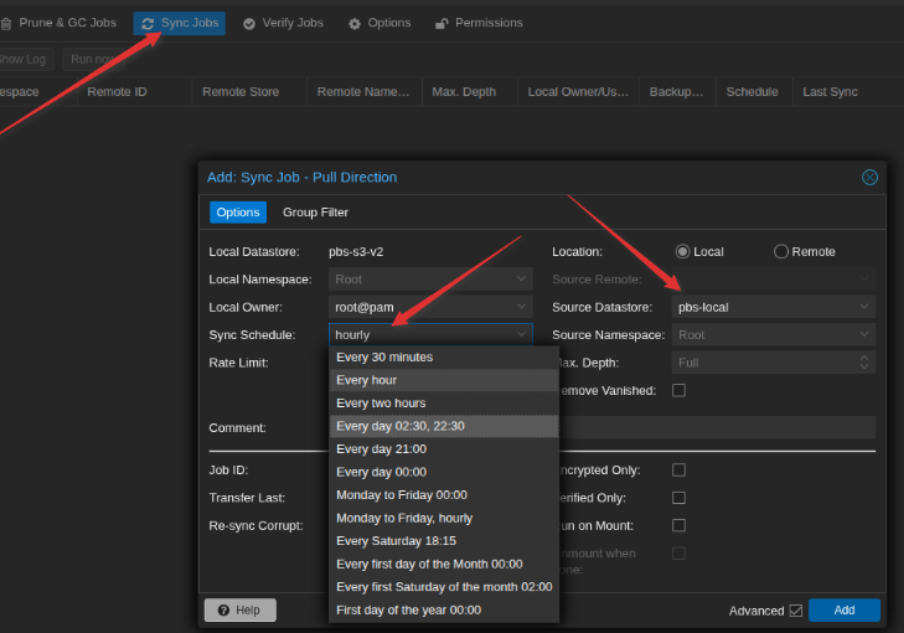
Step 6. Configure a Sync Job from the local datastore to the external one
After creating pbs-s3, you need to configure synchronization from the local datastore.
In PBS:
- open the pbs-s3 datastore
- go to the Sync Jobs tab
- click Add
- set the local datastore pbs-local as the source
- configure the synchronization schedule
- save the job
This step is what creates the second backup copy in the external storage.
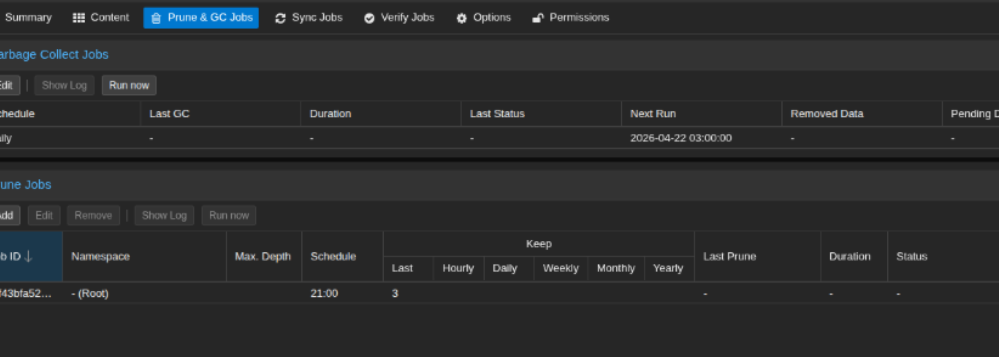
Step 7. Configure the task order
For the setup to work correctly, it is important to arrange the tasks in the right order.
The recommended sequence is:
- backup from Proxmox VE to pbs-local
- Prune for pbs-local
- Garbage Collection for pbs-local
- Sync Job from pbs-local to pbs-s3
This order allows you to:
- complete the local backup first
- then clean up old backups and unused chunks
- and only after that synchronize the updated state to the external datastore
Step 8. Verify that synchronization completed successfully
After the first Sync Job run, open:
- the pbs-s3 datastore
- the Sync Jobs tab
- the task execution log
If everything is configured correctly, the job status should be successful, and backups of the virtual machines should appear in the contents of pbs-s3.
You may also see the internal datastore structure in the external object storage, for example directories such as .chunks, .cnt, and other service data. This is normal: PBS does not store backups as separate vzdump archives, but in its own internal structure.
Step 9. Add the external datastore to Proxmox VE
If you want to restore virtual machines directly from the external datastore through the Proxmox VE interface, you also need to add it as a separate storage.
In Proxmox VE:
- go to Datacenter → Storage
- click Add → Proxmox Backup Server
- specify:
-
- ID: for example pbs-s3
- Server: the same PBS server
- Username: the PBS user
- Password: the password
- Datastore: pbs-s3
- Fingerprint: the same certificate fingerprint
- save the storage
After that, you will be able to open pbs-s3 in Proxmox VE and view backups from the external datastore.
Conclusion
This setup makes it possible to separate fast local backup storage from the external copy. The main backups are first saved to a local datastore, and then synchronized to a second datastore based on S3-compatible object storage. This is a convenient option when you want to keep local backup performance high while also maintaining an additional offsite copy.