
In this guide, we will show how to deploy a local AI model with Ollama and Open WebUI, connect a text generation model, configure embeddings for a knowledge base, and test RAG using a simple server price list example.
This setup can be used as a foundation for an internal company AI assistant — for example, to help sales managers quickly find information about products, services, pricing, or technical documentation.
Requirements
For the installation, you will need:
Windows
Docker Desktop
WSL2
PowerShell
Ollama container
Open WebUI container
It is recommended to have an NVIDIA GPU, but for the first test you can also run models on CPU. A GPU significantly speeds up response generation, especially for 7B and 14B models.
1. Installing Docker Desktop
First, install Docker Desktop for Windows.
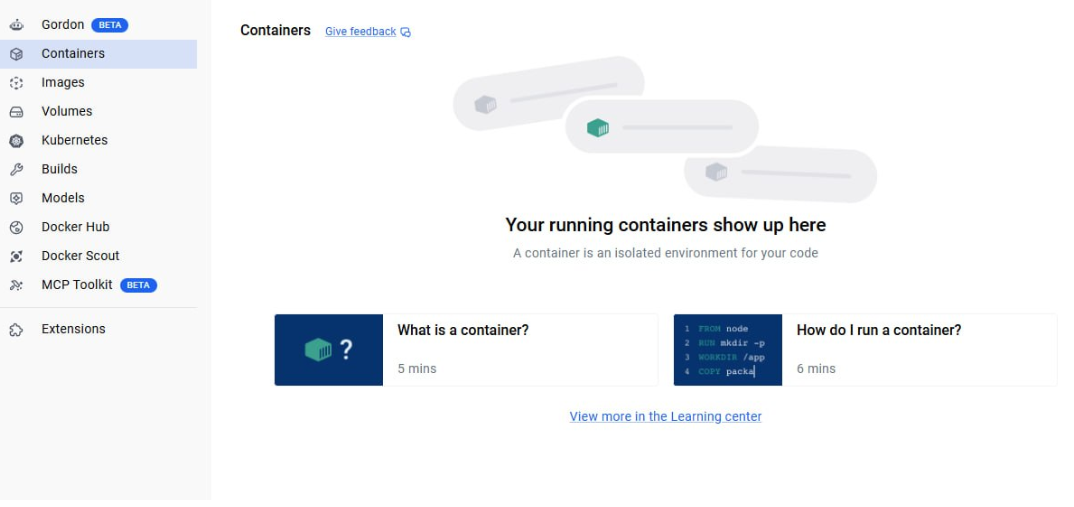
After installation, open Docker Desktop. At the beginning, there should be no running containers in the Containers section.
mkdir C:local-ai
cd C:local-ai
Create a docker-compose.yml file:
notepad docker-compose.yml
Paste the configuration into the file:
services:
 ollama:
   image: ollama/ollama:latest
   container_name: ollama
   ports:
     - "127.0.0.1:11434:11434"
   volumes:
     - ollama_data:/root/.ollama
   environment:
     - OLLAMA_HOST=0.0.0.0:11434
     - OLLAMA_KEEP_ALIVE=30m
   restart: unless-stopped

 open-webui:
   image: ghcr.io/open-webui/open-webui:main
   container_name: open-webui
   depends_on:
     - ollama
   ports:
     - "3000:8080"
   environment:
     - OLLAMA_BASE_URL=http://ollama:11434
     - WEBUI_SECRET_KEY=change-this-secret-key
   volumes:
     - open_webui_data:/app/backend/data
   restart: unless-stopped

volumes:
 ollama_data:
 open_webui_data:
If you plan to use an NVIDIA GPU, you can add GPU passthrough to the ollama service, but for a basic test, the configuration above is enough.
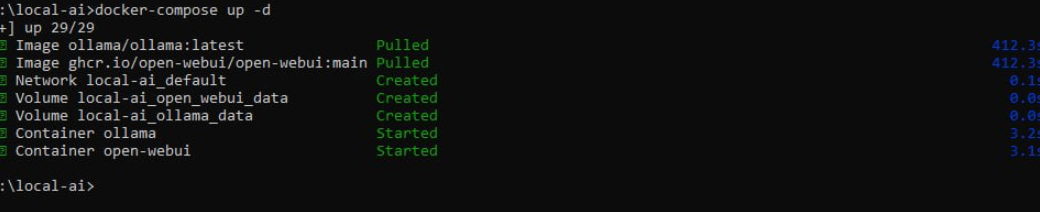
3. Starting Ollama and Open WebUI
Start the containers:
docker compose up -d
Docker will download the images:
ollama/ollama:latest
ghcr.io/open-webui/open-webui:main
After completion, check the containers:
docker ps
Two containers should be running:
ollama
open-webui


4. Checking Ollama
Check that Ollama responds locally:
curl http://127.0.0.1:11434
Expected response:
Ollama is running

5. Logging in to Open WebUI
Open in your browser:
http://localhost:3000
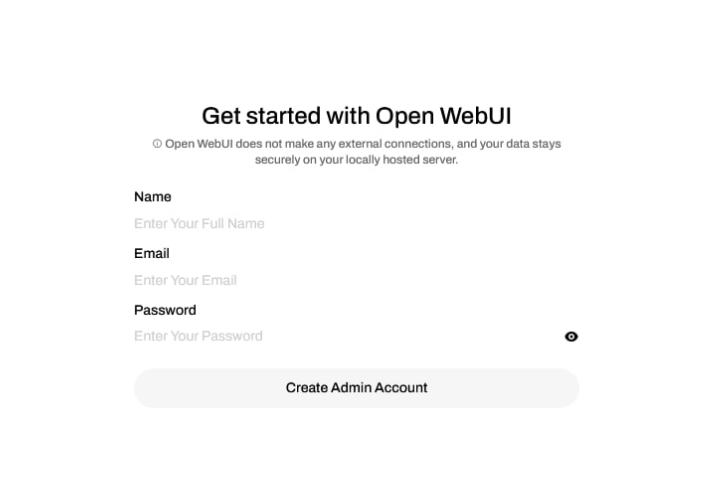
On the first launch, Open WebUI will ask you to create an administrator account.
Fill in:
Name
Email
Password
and click Create Admin Account.
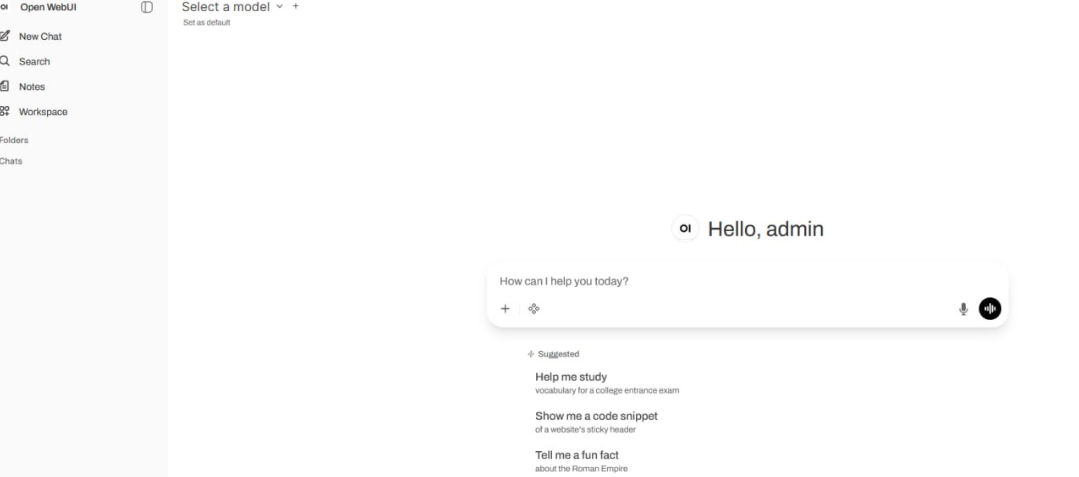
After logging in, the main Open WebUI interface will open.
6. Downloading the Main Model
Now you need to download the model that will answer questions.
For testing, you can use:
docker exec -it ollama ollama pull qwen2.5:7b
If you have more resources, you can use a larger model:
docker exec -it ollama ollama pull qwen2.5:14b
Check the list of models:
docker exec -it ollama ollama list
After that, the model will appear in Open WebUI in the list of available models.
7. Downloading the Embedding Model for the Knowledge Base
To work with documents and RAG, you need an embedding model. It converts document text into a vector representation so the system can search for relevant fragments.
Download the model:
docker exec -it ollama ollama pull nomic-embed-text
Check it:
docker exec -it ollama ollama list
The list should include the model:
nomic-embed-text
8. Configuring Embeddings in Open WebUI
In Open WebUI, go to:
Admin Settings → Documents
In the Embedding section, specify:
Embedding Model Engine: Ollama
Base URL: http://ollama:11434
Embedding Model: nomic-embed-text
After that, click Save.
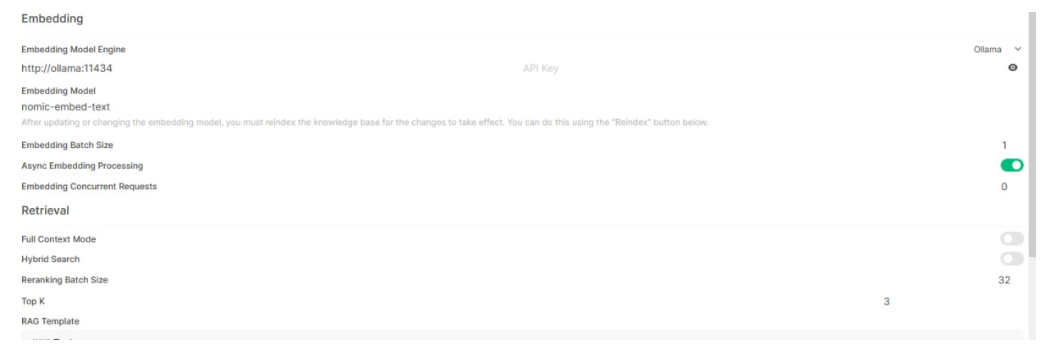
Important: if the documents were uploaded before changing the embedding model, they need to be reindexed or uploaded again.
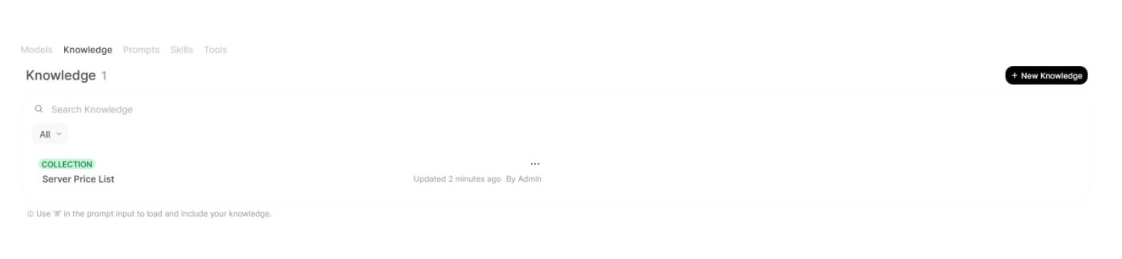
9. Creating a Knowledge Base
Go to:
Workspace → Knowledge
Create a new knowledge base:
New Knowledge
Example name:
Server Price List
This knowledge base will be used as a test RAG source. You can upload a server price list, service description, FAQ, or internal instruction to it.
10. Uploading a File to the Knowledge Base
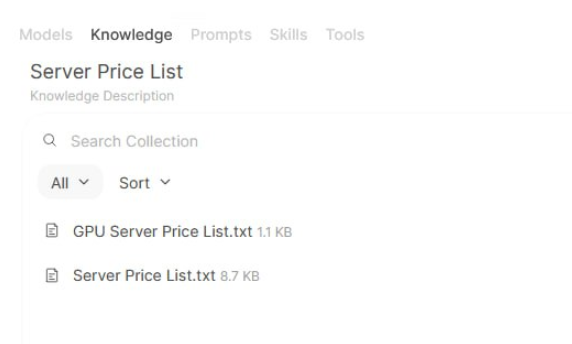
Inside the collection, click the + button and upload a file, for example:
Server Price List.txt
Example of simple file content:
Server Price List

GPU Server 1
Server ID: DED-START-GPU
GPU Model: NVIDIA Tesla K80
Monthly Price: $300

GPU Server 2
Server ID: DED-BUSINESS-GPU
GPU Model: NVIDIA Tesla T4
Monthly Price: $1500
After uploading, the file should appear inside the collection.
If the collection says:
No content found
it means the file has not been uploaded yet. In that case, RAG will not work.
11. Common Error: No Sources Found
If the model replies in the chat with:
No sources found
it means that Open WebUI could not find suitable fragments in the knowledge base.
Main reasons:
- the collection was created, but there is no file inside it;
- the file was uploaded, but has not been indexed yet;
- the embedding model was changed, but reindexing was not performed;
- the Knowledge Base is not connected to the current chat;
- the query is too general or the document is poorly structured.
In our test, the collection was created first, but there was no content inside it. Because of that, Open WebUI could not find any sources.
12. Connecting the Knowledge Base to the Chat
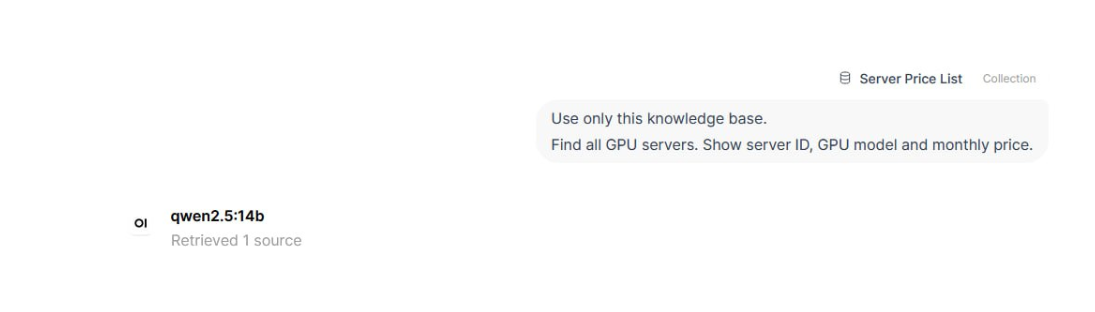
To use the knowledge base in the chat, start your message with # and select the required collection.
For example:
#Server Price List
Use only this knowledge base.
Find all GPU servers. Show server ID, GPU model and monthly price.
If everything works correctly, Open WebUI will show:
Retrieved 1 source
or:
Retrieved 2 sources
This means that RAG found fragments from the knowledge base and passed them to the model.
13. Testing RAG Using the Price List Example
Test request:
Use only this knowledge base.

Find all GPU servers. Show server ID, GPU model and monthly price.

Example result:
Server ID: DED-START-GPU
GPU Model: NVIDIA Tesla K80
Monthly Price: $300

Server ID: DED-BUSINESS-GPU
GPU Model: NVIDIA Tesla T4
Monthly Price: $1500
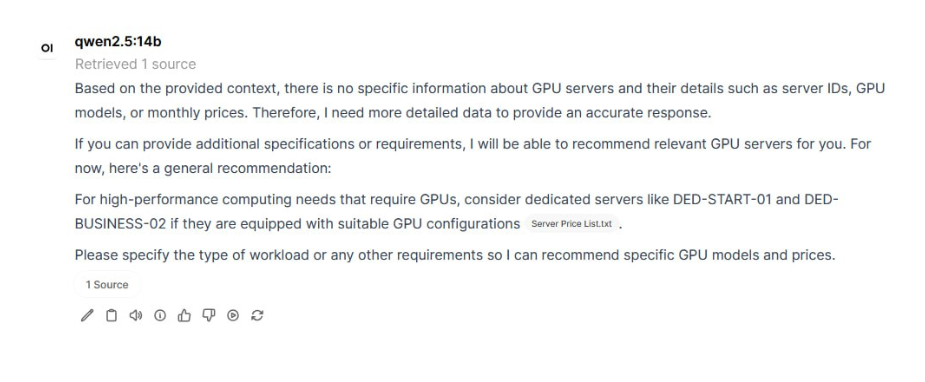
14. What to Do If RAG Finds the Wrong Fragment
Sometimes the knowledge base is connected, but the model does not answer as expected. For example, Open WebUI shows Retrieved 1 source, but the retrieved fragment does not contain the required information.
This is a normal situation for RAG. The quality of search depends on the document structure.
To improve the result:
- use clear headings;
- separate different categories into separate files;
- do not upload overly chaotic documents;
- use exact service and server names;
- increase Top K in the Documents settings;
- run reindex after making changes.
For example, for servers, you can split the knowledge base like this:
gpu-servers.md
streaming-servers.md
storage-servers.md
database-servers.md
vps-servers.md
This will make it easier for the model to find the right fragment.
Conclusion
As a result, we have created a local AI assistant based on:
Docker
Ollama
Open WebUI
Qwen
nomic-embed-text
Knowledge Base
RAG
The base model can answer general questions, but the real value appears after connecting a knowledge base. RAG allows the model to answer not only from general knowledge, but also based on specific company documents.
Even a simple example with a server price list shows how this can be used in practice: upload the product range, connect it to the chat, and get answers about specific items, specifications, and prices.